Notes & Annotations
The Annotation Panel
u.m.p.’s annotation panel curates a list of all notes and illustrated annotations for loaded media. Notes and screenshots are saved in a .ump folder next to the loaded media, making them accessible to coworkers as well. They will load with the media, if available.
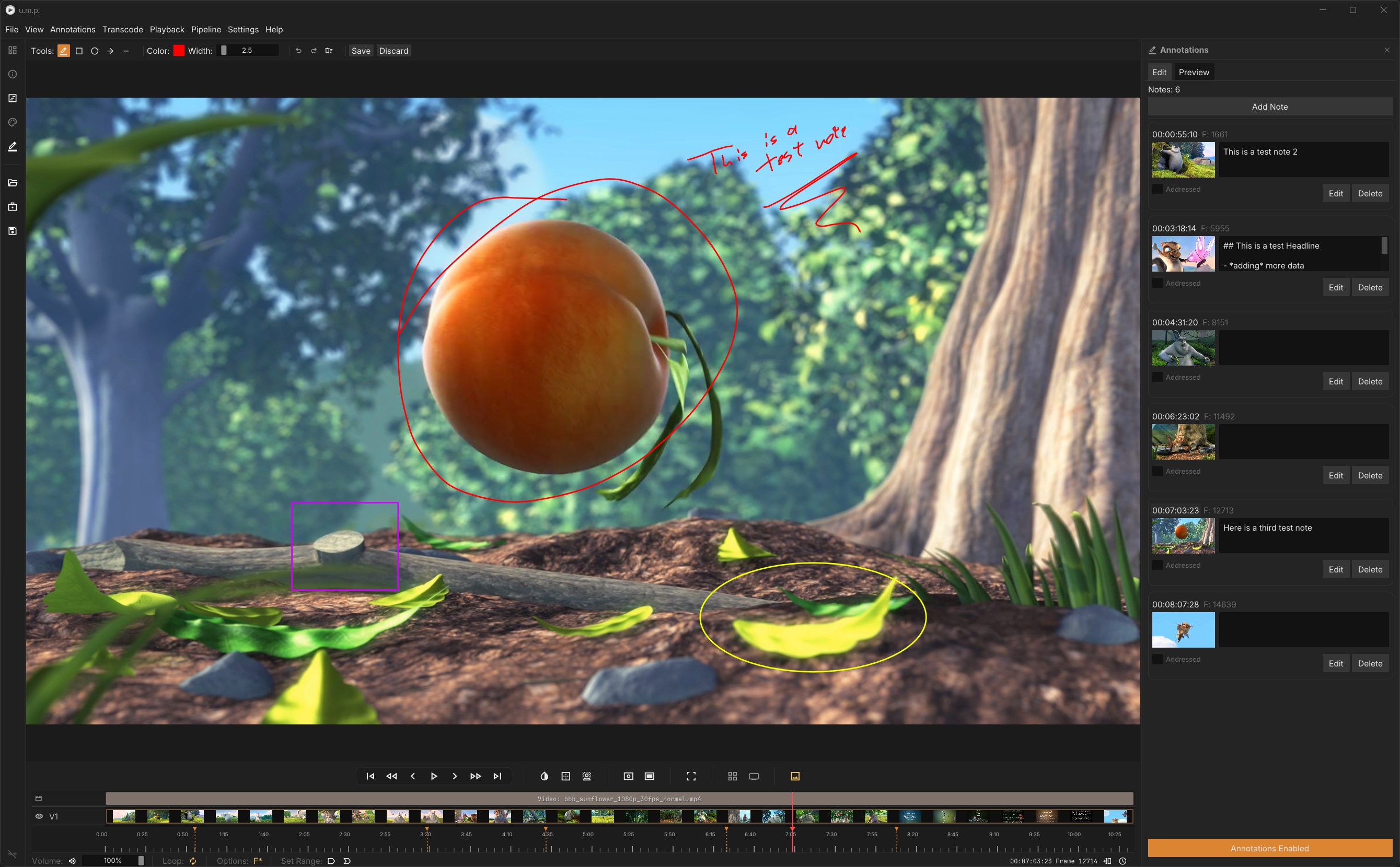
Notes
- To create a new note, click on the
Add Notebutton at the top of the panel. This will create a note at the playhead’s current location in the timeline and create a diamond-shaped marker for visual reference. To edit the note copy, type in the text field. Basic Markdown (headlines, lists, bold, italics, code) are supported in preview and exports. - The Annotation Toolbar appears at the top with a line-width slider and presents shapes, including a box, circle, and arrow. You can select different colors as well. Use these controls to tune your illustrations in the viewport.
- Don’t forget to save your drawing when you are done annotating.
Ctrl + Zworks for undo, andCtrl + Yworks for redo.

If you don’t want annotations to appear over the video, toggle the Annotations button at the bottom of the panel to make them invisible.
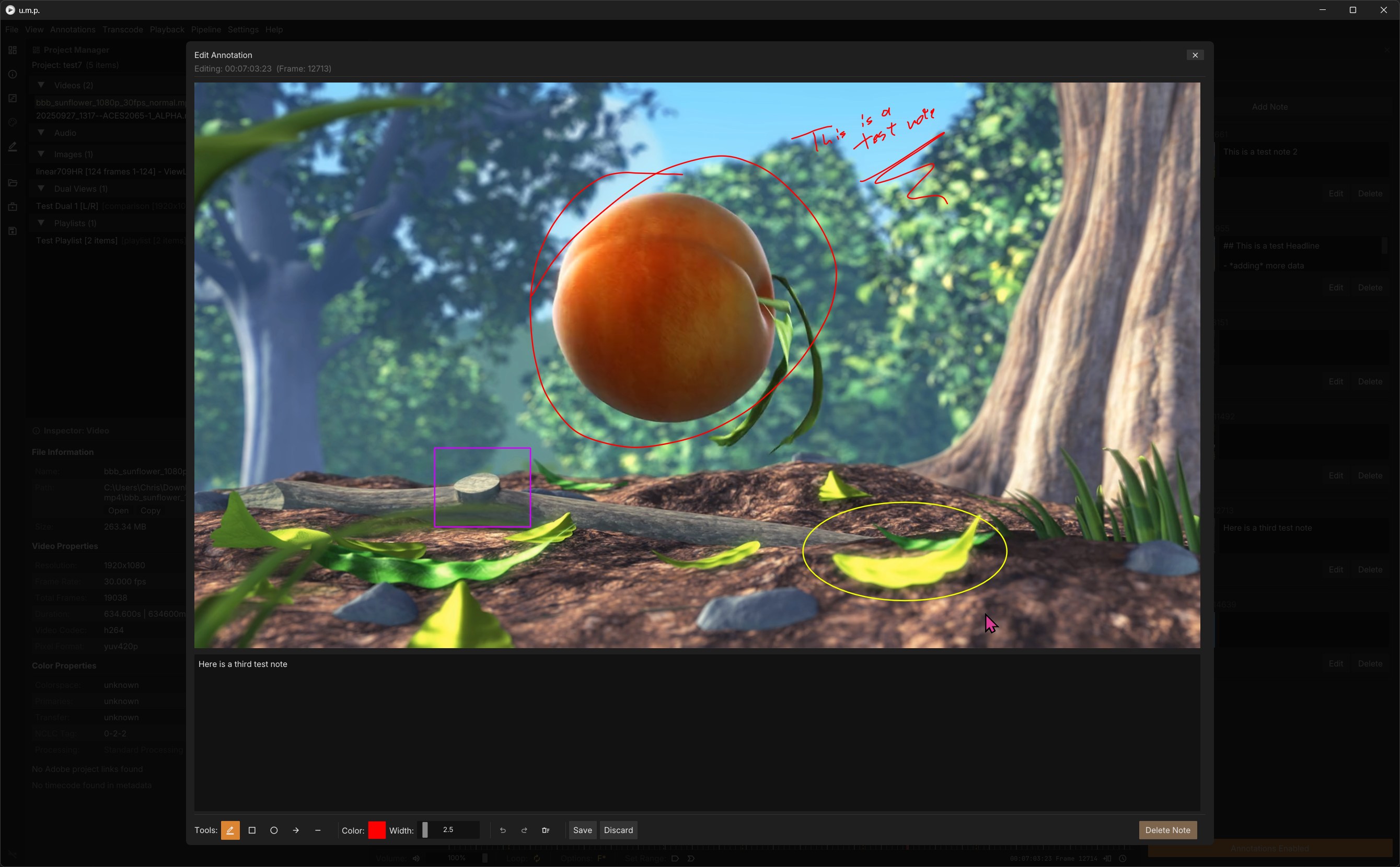
A Larger Edit View
So, you want to write a manifesto? The edit Button is for you. It brings up the frame with a larger annotation interface.
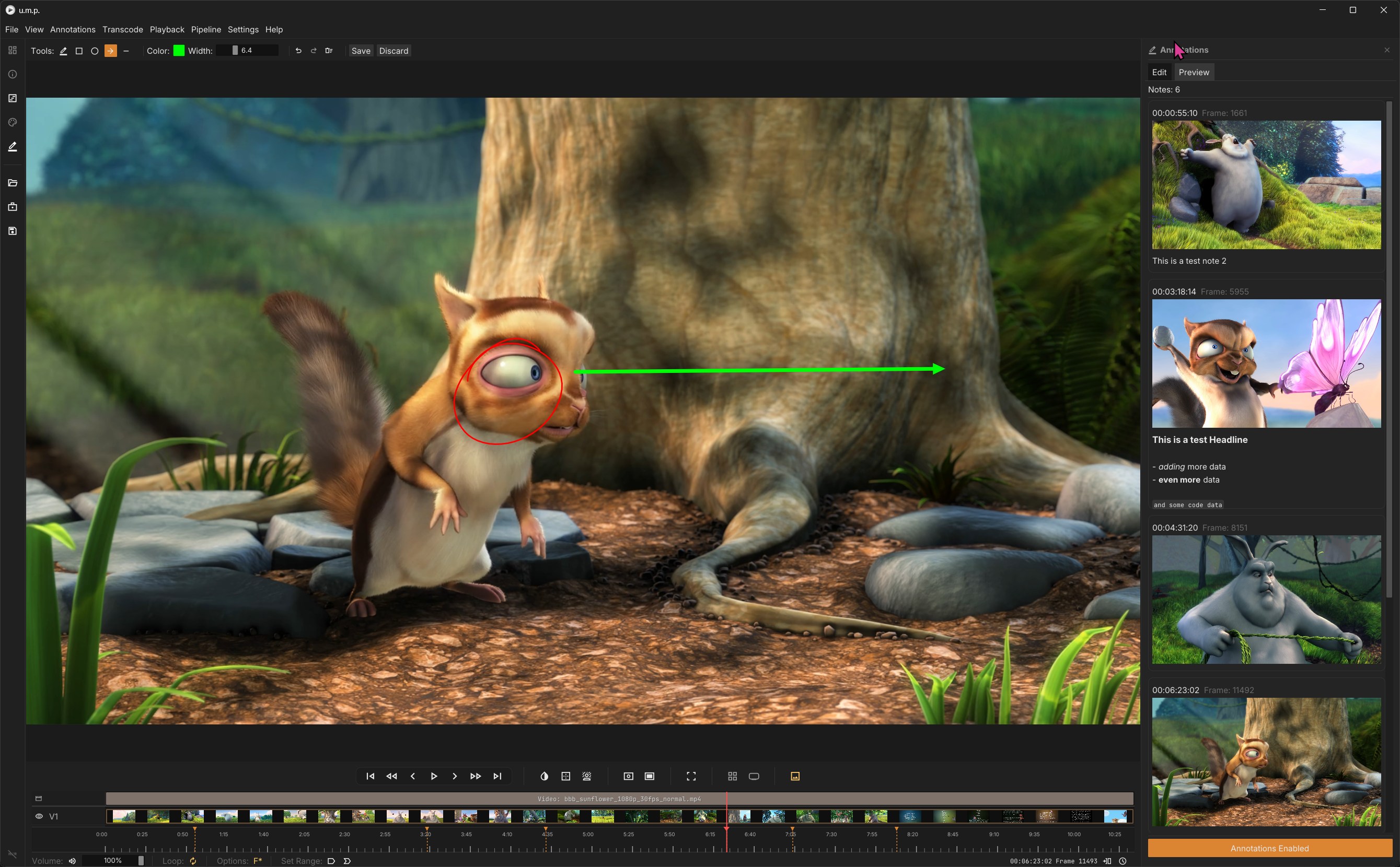
Previewing Notes
In the Preview tab, you can preview the notes. Right-clicking a note in this tab will also toggle the addressed state and mute the note for tracking purposes.
Exporting Notes
Under Export, in the menu above the annotations window, are a few options for exporting notes, including:
- Markdown
- HTML
Markdown will create a folder structure with the note and exported images. HTML and PDF options embed the images in the document.
Importing from Frame.io
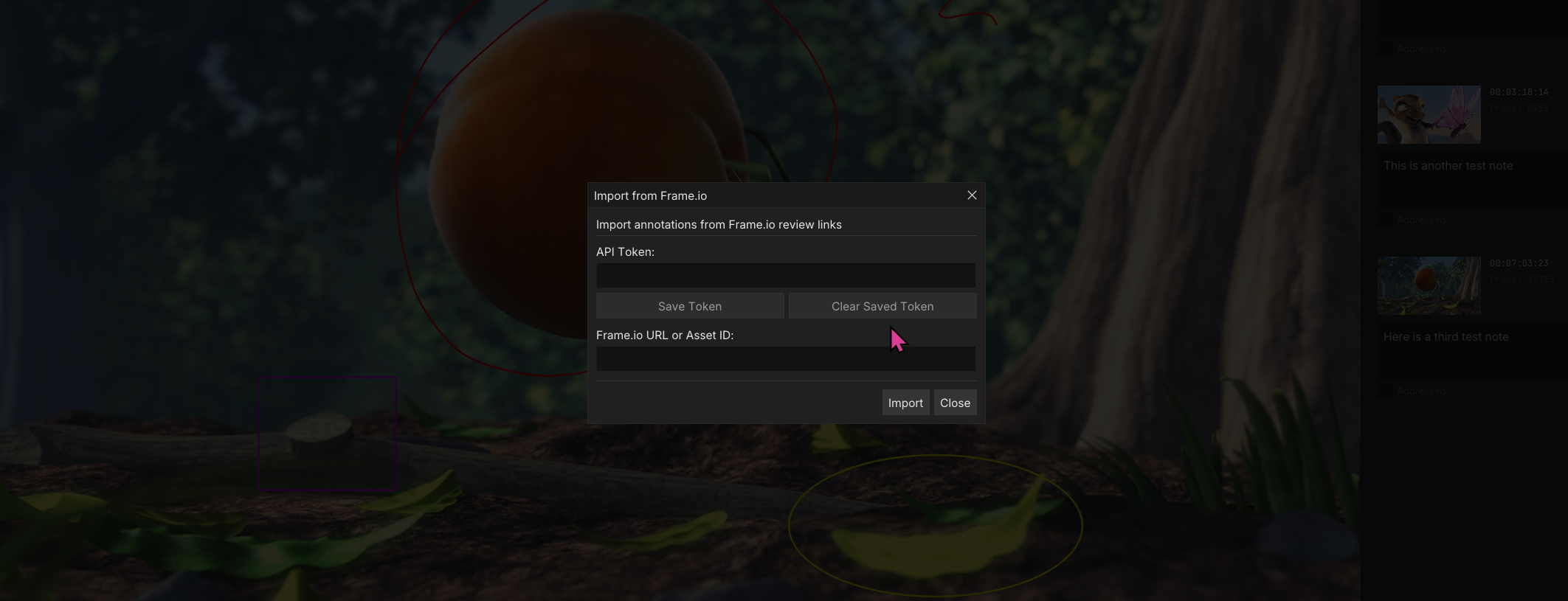
To import from Frame.io, you will need a Developer API token. These are available to any Frame.io user–go to https://developer.frame.io/app/tokens to make one.
- In the main menu, go to
Annotations->Import->From Frame.io. - Add, and optionally save, your API token. (Note: These are not saved securely, so don’t do this on a public computer.)
- Add the URL for the webpage of the video you want to import. Note: This is the actual URL of the video, and not Frame.io’s shortened client URL.
- Press
Import.
Note: This works with the old Frame.io API, so it might not work forever as Frame.io transitions over to Adobe’s API.