OCIO Color Nodes
QCView includes a node-based OpenColorIO pipeline for live color management. Build transform chains visually and see results applied to the Viewer in real time.
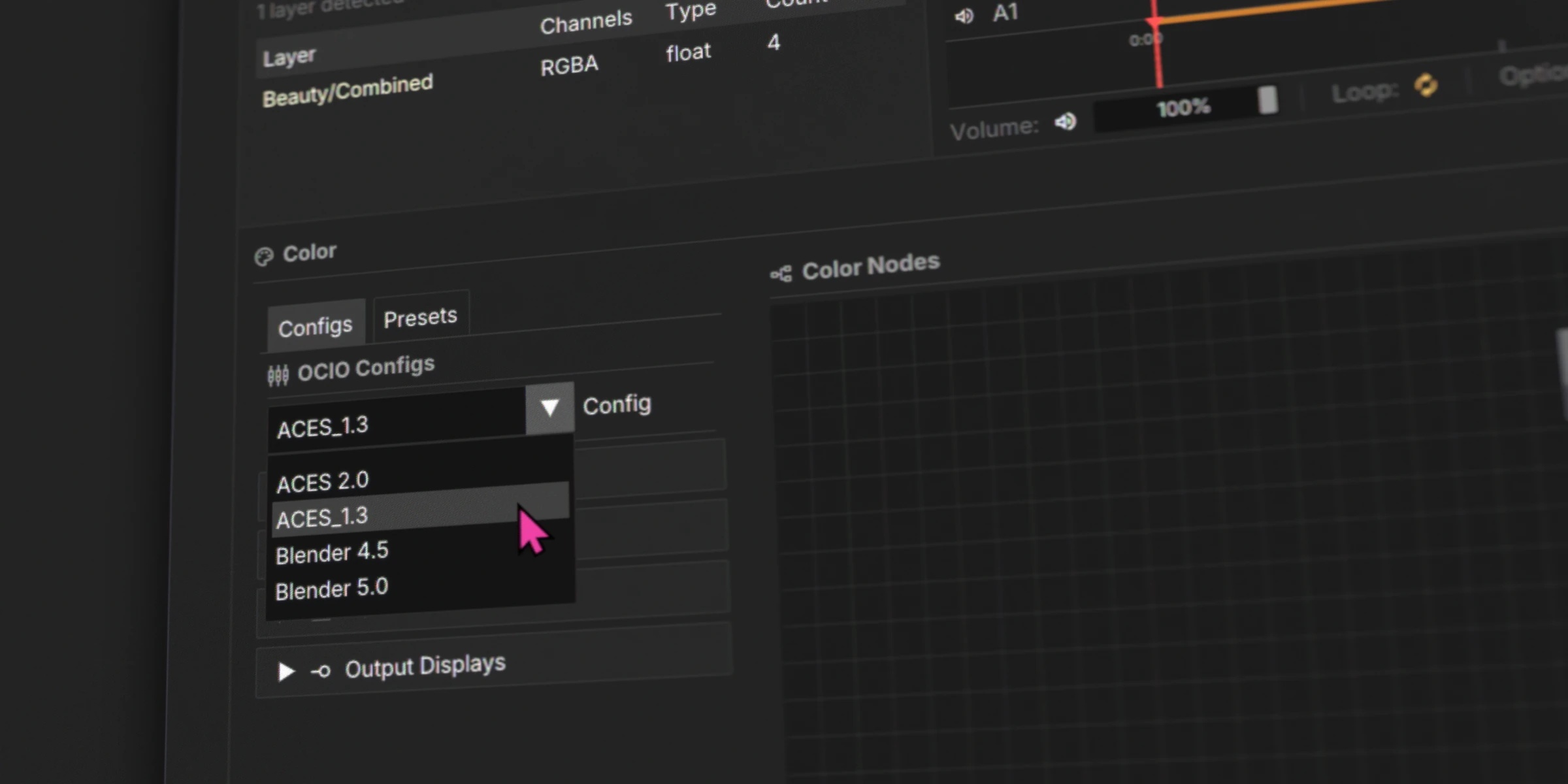
Bundled configs: ACES 2.0, Blender 5.1, ACES 1.3
Blender 5.1 is the default config. Both ACES 2.0 and Blender 5.1 include Linear sRGB EDR and Linear P3 EDR display outputs for macOS Extended Dynamic Range workflows with ACES 2.0 HDR tone mapping at 500, 1000, 2000, and 4000 nit levels.
Building a Node Tree
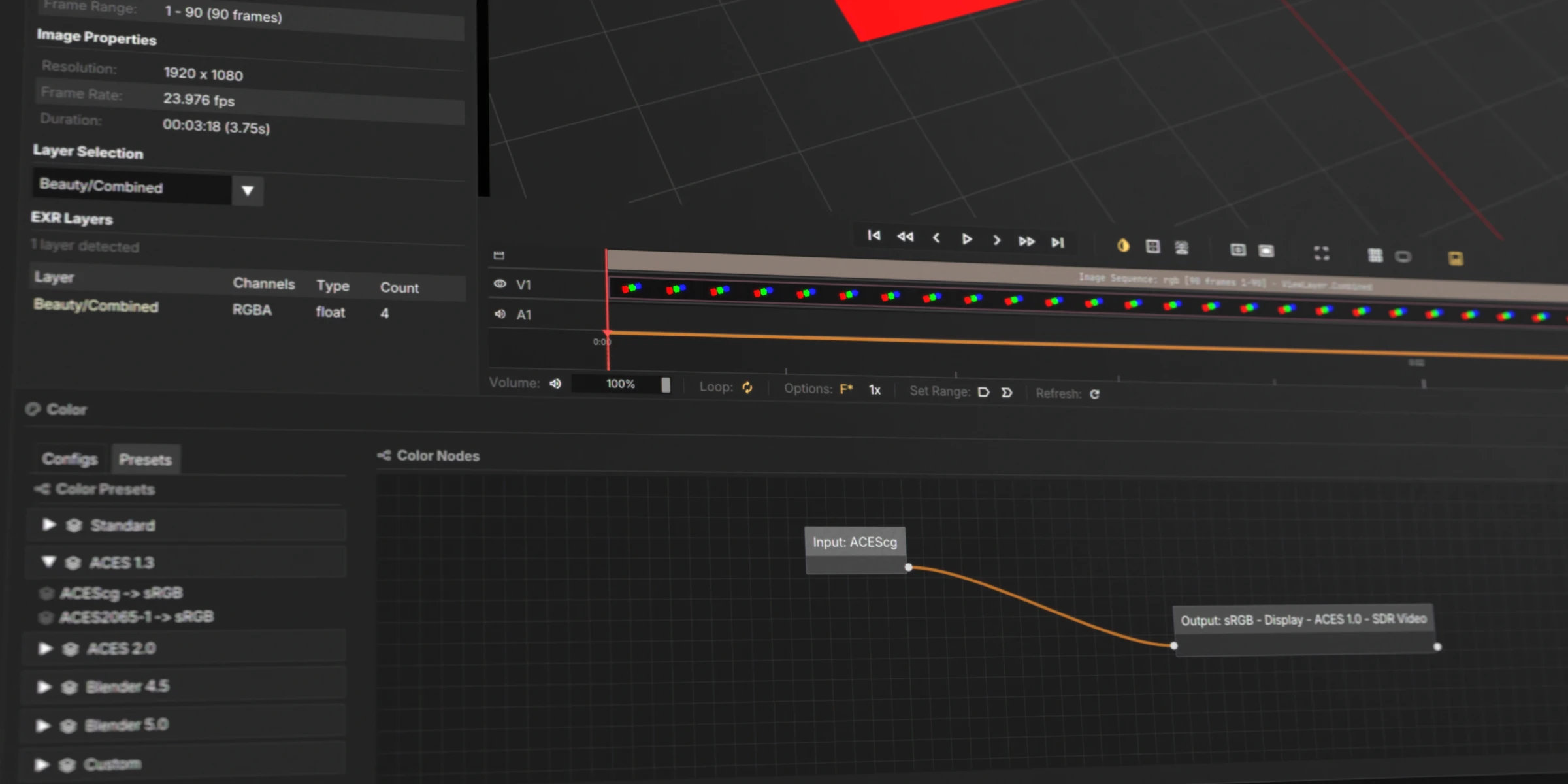
A color transform requires at minimum an Input node and an Output node. Follow these steps:
1. Select a Config
Choose a config that matches your color pipeline.
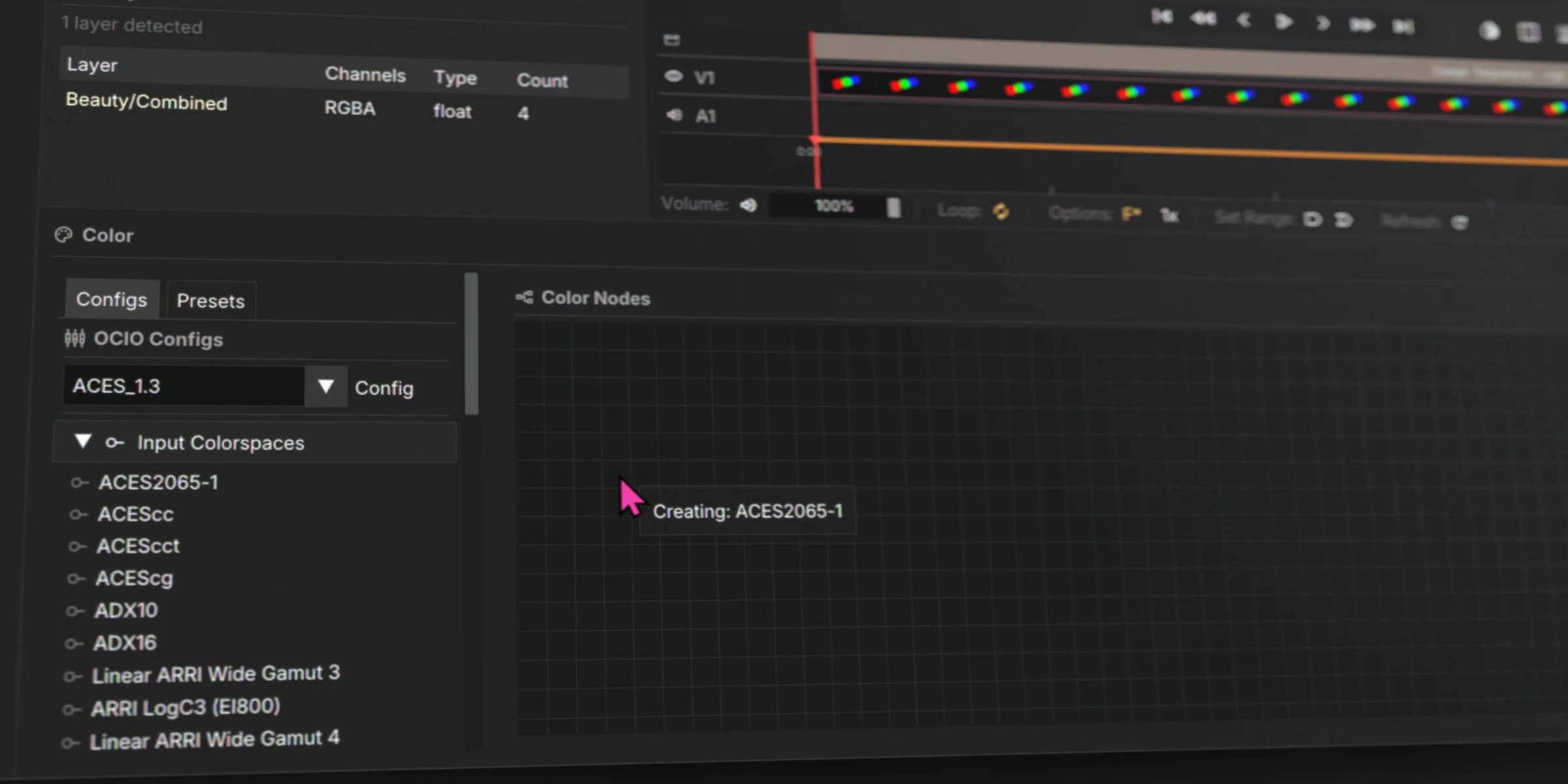
2. Add an Input Node
Drag an Input node into the Node Graph panel.
3. Add an Output Node
Drag an Output node into the graph.
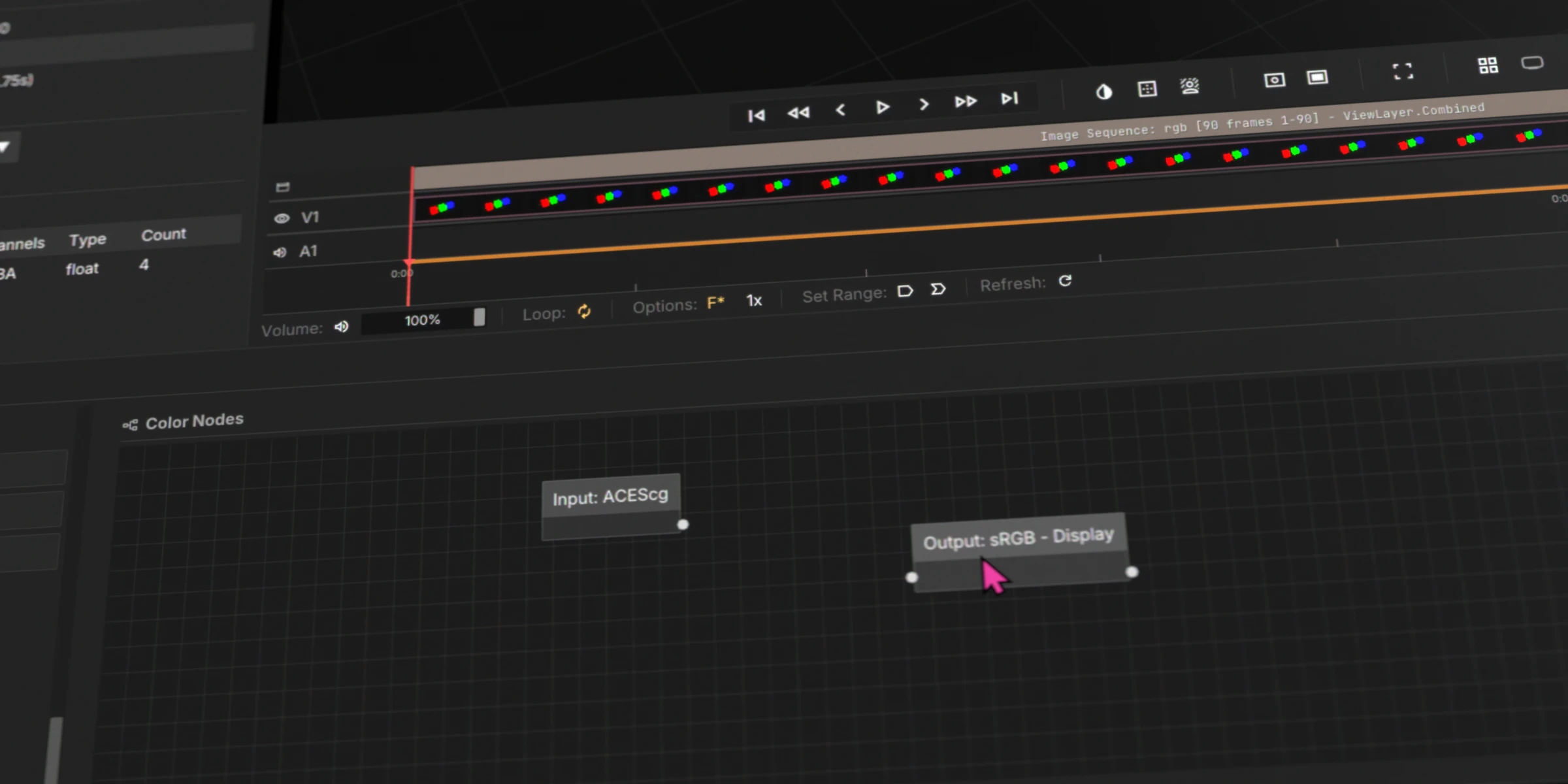
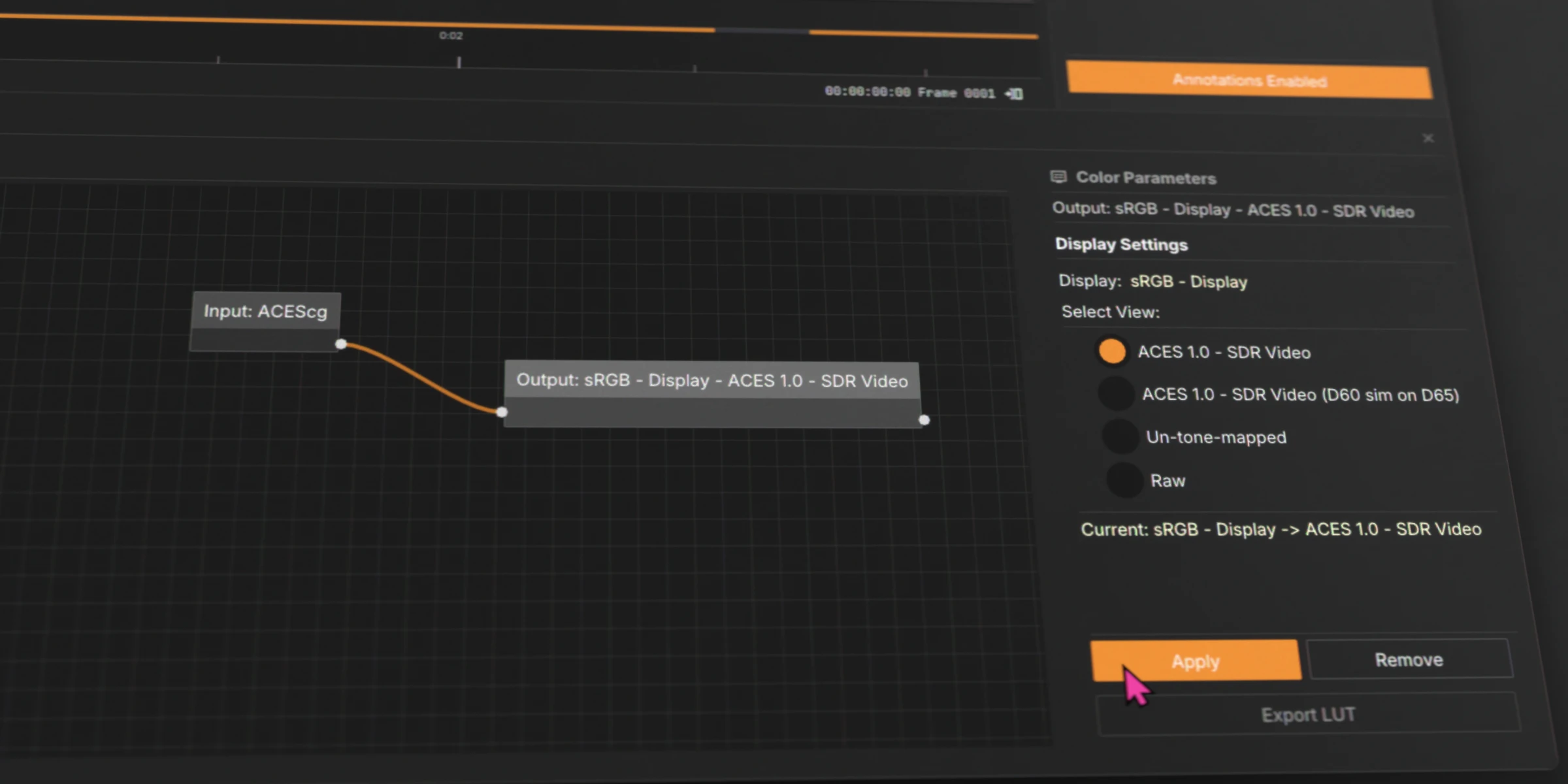
4. Connect and Apply
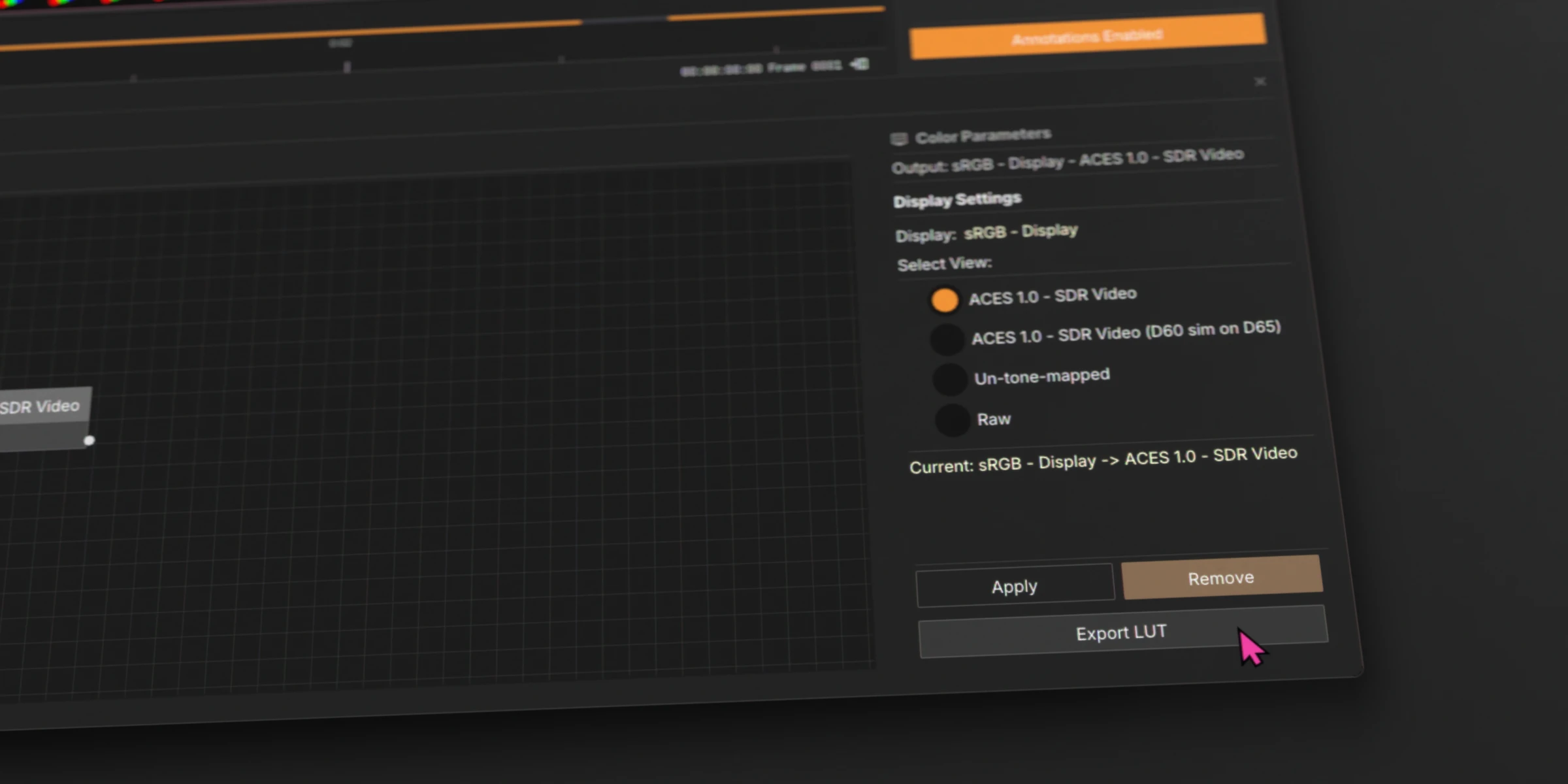
Connect the nodes, then click the Output node to open its settings. Select a View if required, then click Apply to see the transform in the Viewer. Click Remove to clear it.
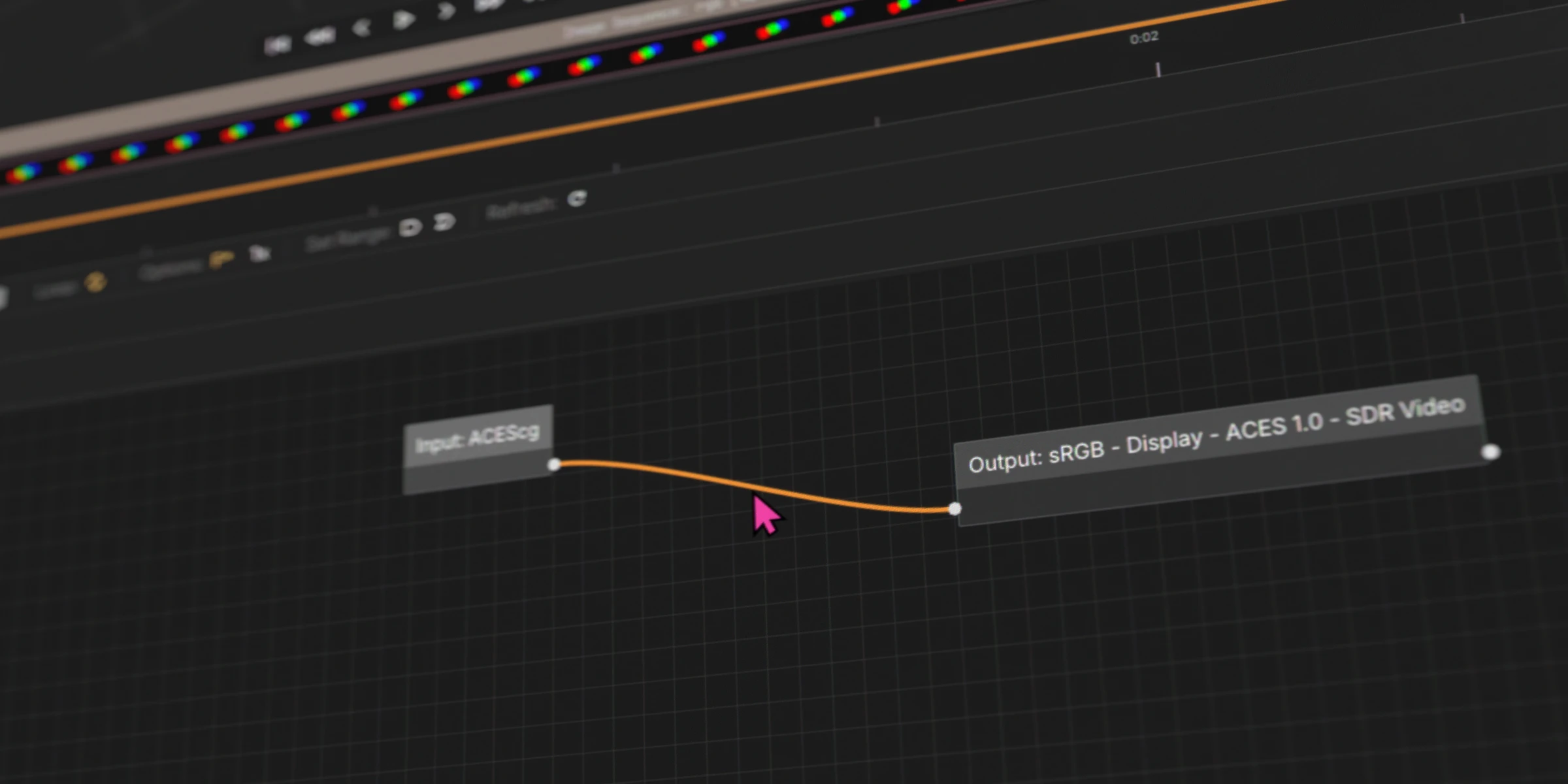
Node Management
Select any node or connection and press X or Delete to remove it.
LUTs
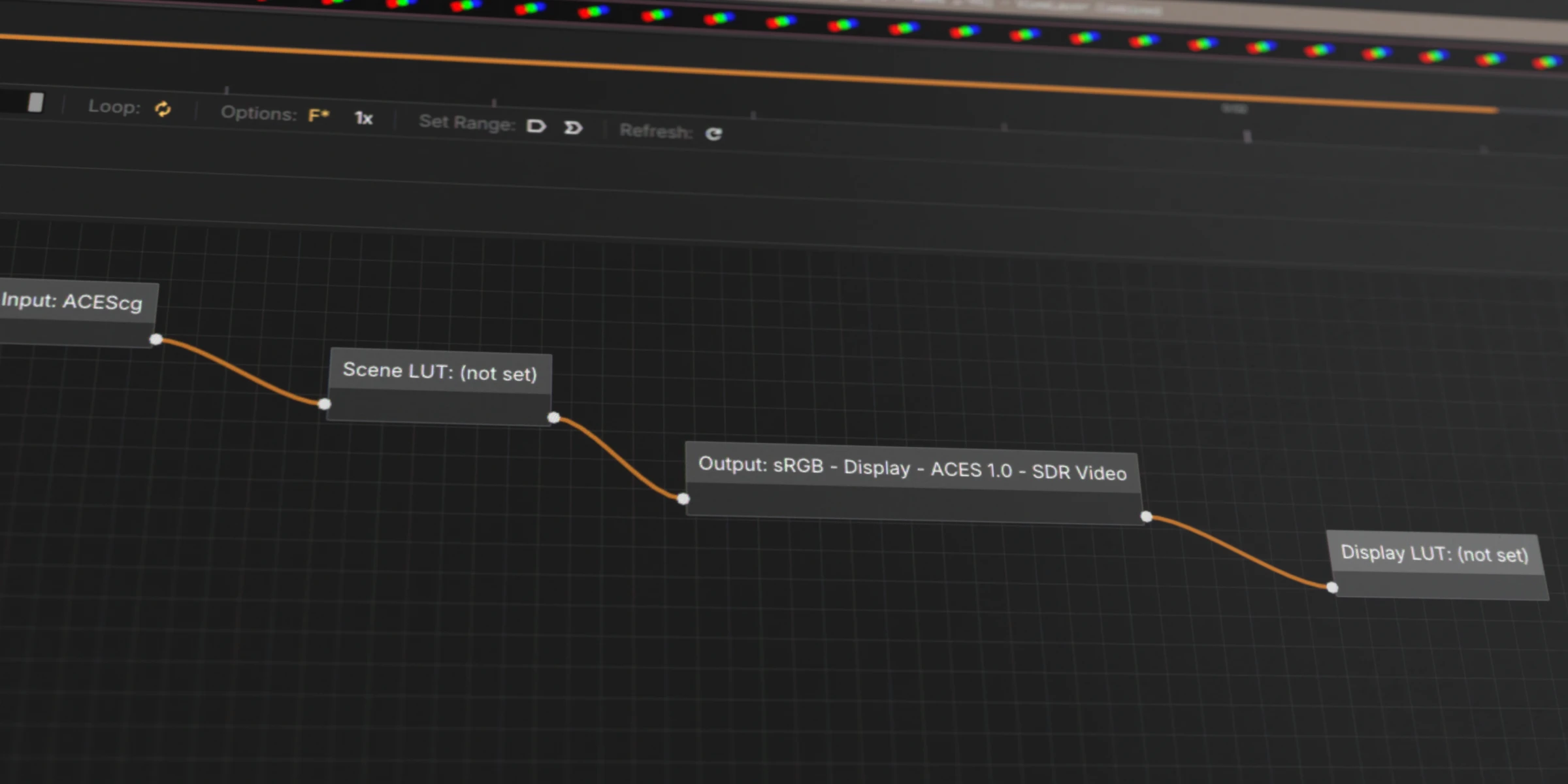
Add custom LUT files (.cube) to the transform chain:
| LUT Type | Position in Chain |
|---|---|
| Scene LUT | Before the Output node |
| Display LUT | After the Output node |
Click Select LUT File on the node to assign a .cube file.
Looks
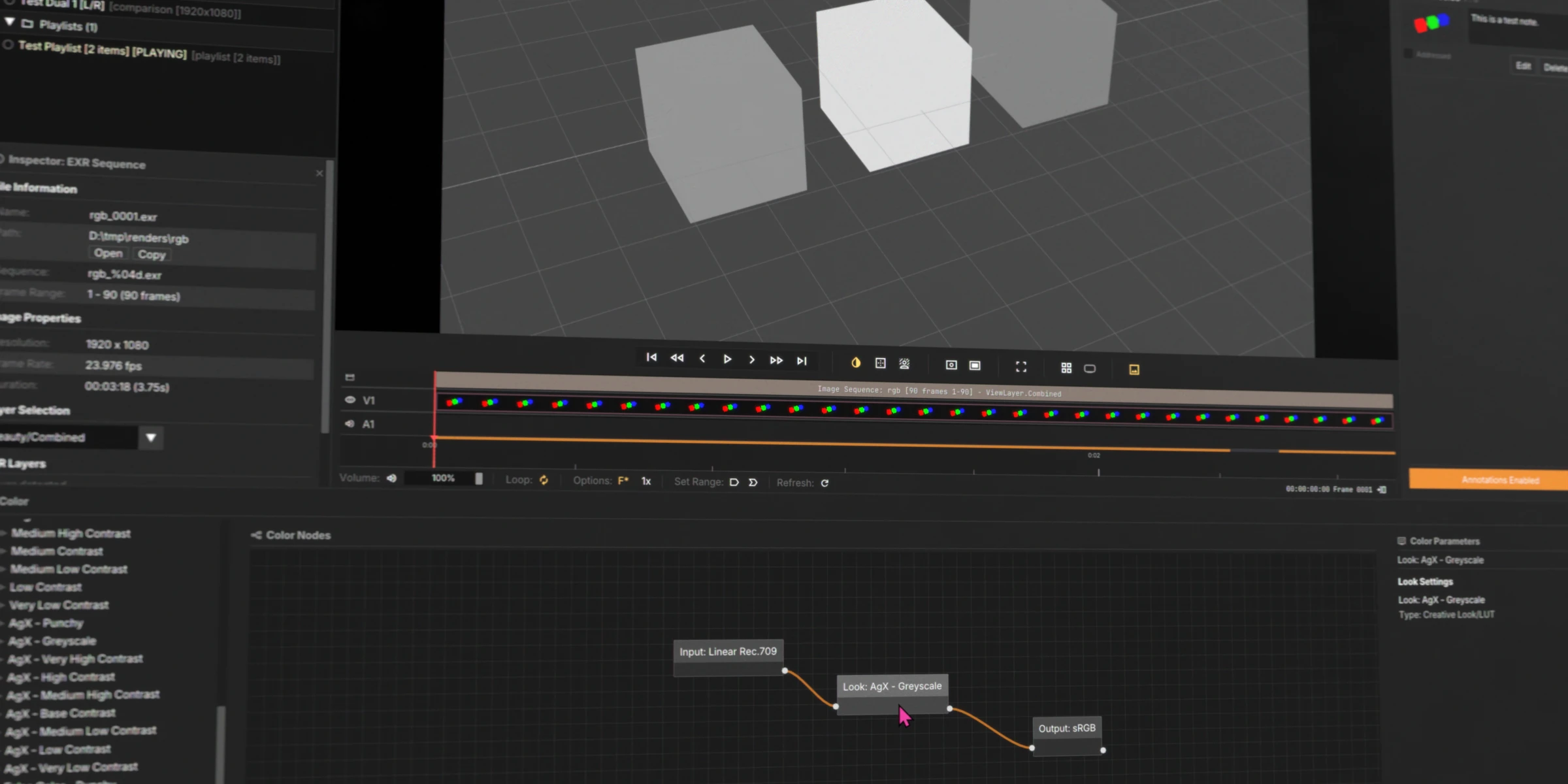
Look nodes go between Input and Output. All Blender looks are supported — Contrast, AgX, Greyscale, Punchy, and more.
Presets
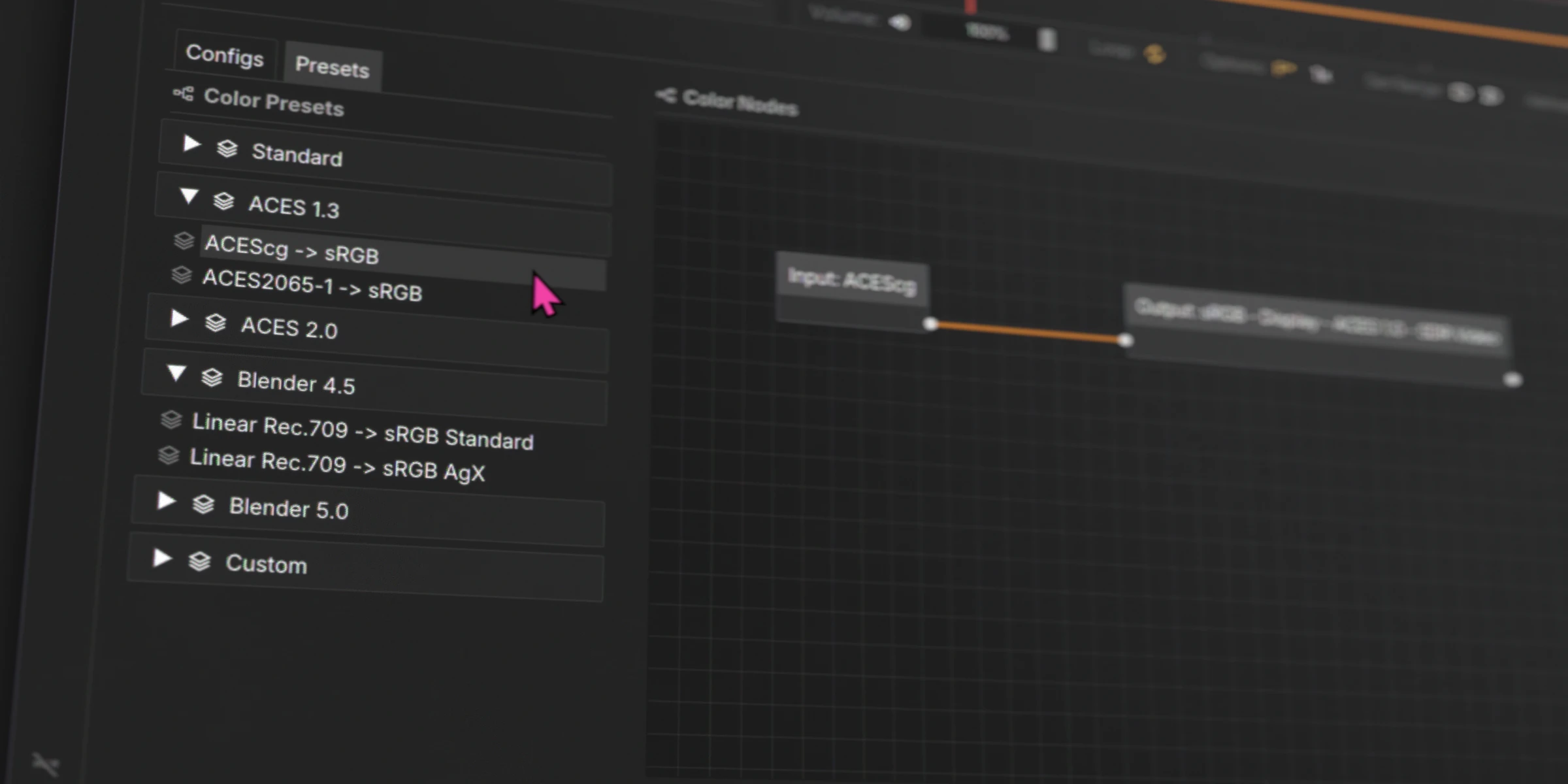
Each bundled config includes ready-made presets. Click a preset to apply it instantly.
Custom Presets
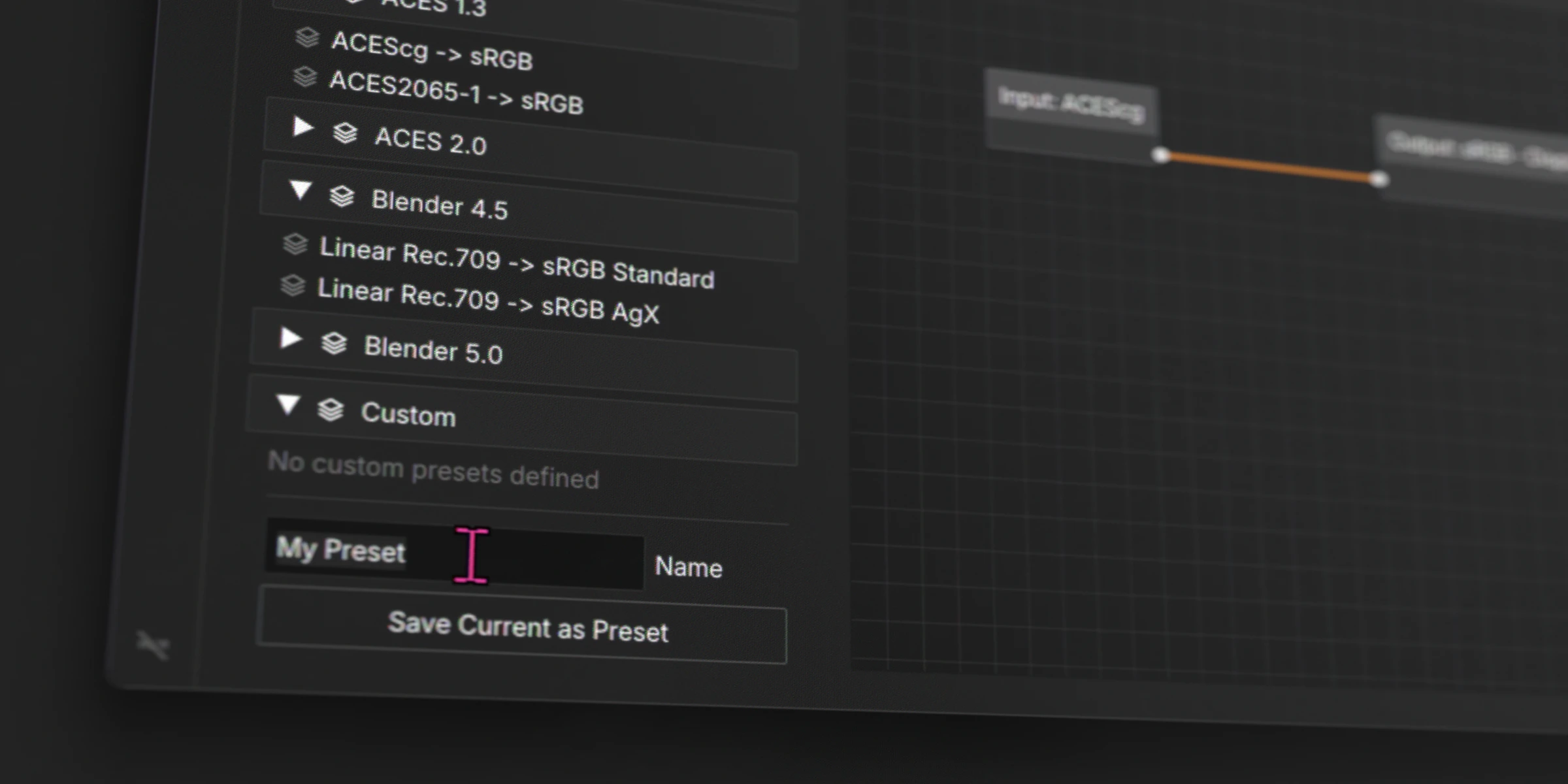
Save your own node tree configurations as presets for quick recall.
Exporting LUTS
Click here to export a Cube LUT for other software/pipelines.