Image Sequences
Loading a Sequence
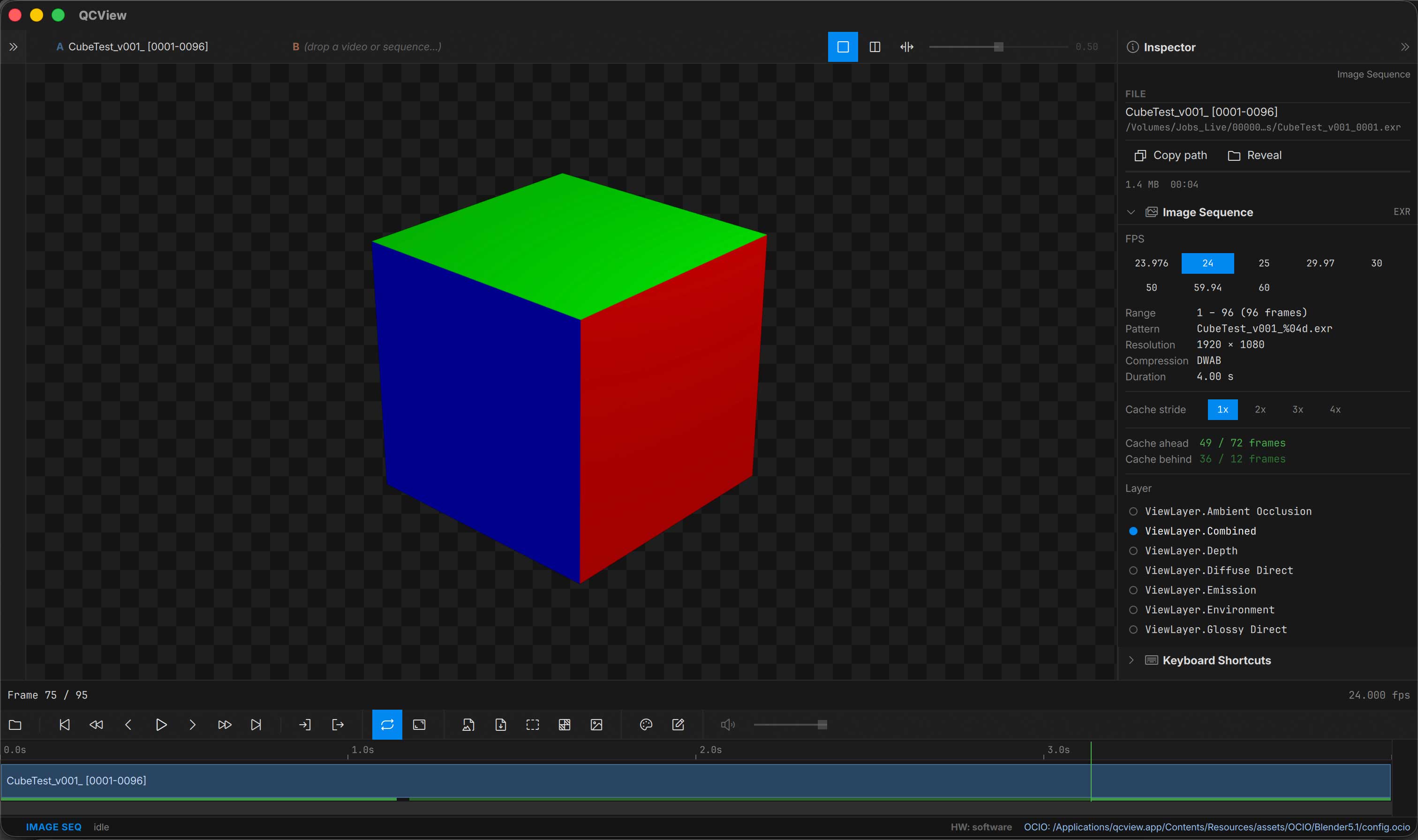
Open or drag a single image from a sequence, and QCView automatically detects the rest of the sequence. Choose a frame rate in the Inspector panel; for multi-layer EXR files, you can also select which layer to load.
Large multi-layer EXRs and high-resolution TIFF sequences (4K+) can exceed what CPU-bound decompression can deliver in real time, regardless of thread count. Use the stride option — see below.
Playback Cache
Image sequences are cached to RAM and uploaded to the GPU as you traverse the timeline. The cache progress bar shows how much read-ahead and read-behind is available at the current playhead position.
Colour interpretation
The Transfer chips on the Image Sequence card tell the scopes how to read the frames when the format rule is wrong for them. Auto reads EXR as scene-linear and everything else as sRGB; pick SDR 709, PQ 2020, PQ P3, HLG or Linear to say otherwise. With OCIO on, the clip’s Input still drives the picture and the scopes. Single stills are one-frame sequences and get the same chips.
Broken and Missing Frames
QCView detects incomplete sequences and fills gaps with the last good frame so you can review in-progress renders. A red bar will appear over missing frames in the timeline.
Stride
Because EXRs are heavy and decompression is CPU-bound, you will eventually load something that causes playback to overrun the cache bar. The Stride chips in the Inspector panel help here. Picking the 2x, 3x, 4x options will skip frames and allow you to playback heavy sequences for review.
Note, changing this option won’t evict frames, it only limits the future cache generation and playback.