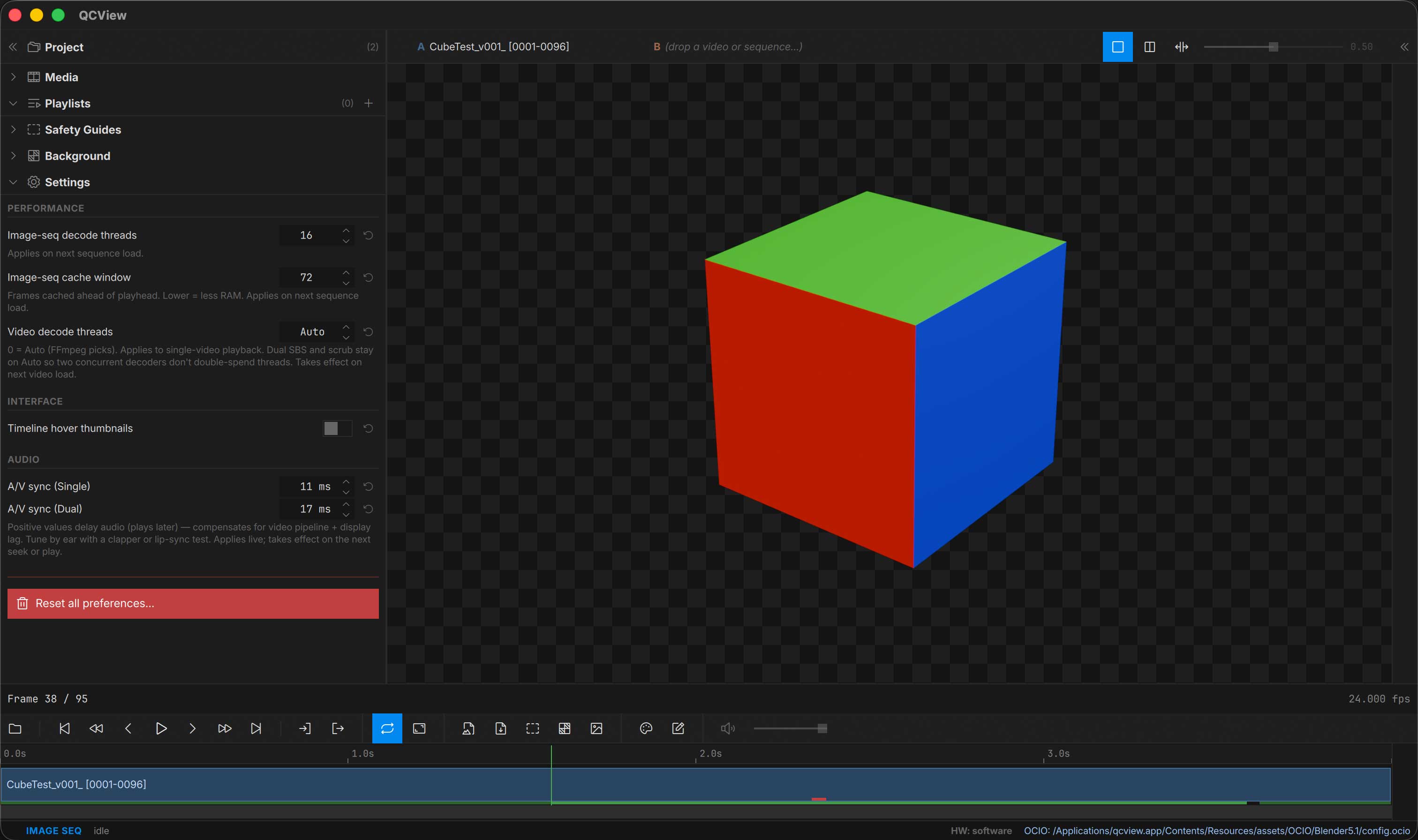
App Basics
Opening Files
File Menu
Use the File menu to load media into QCView:
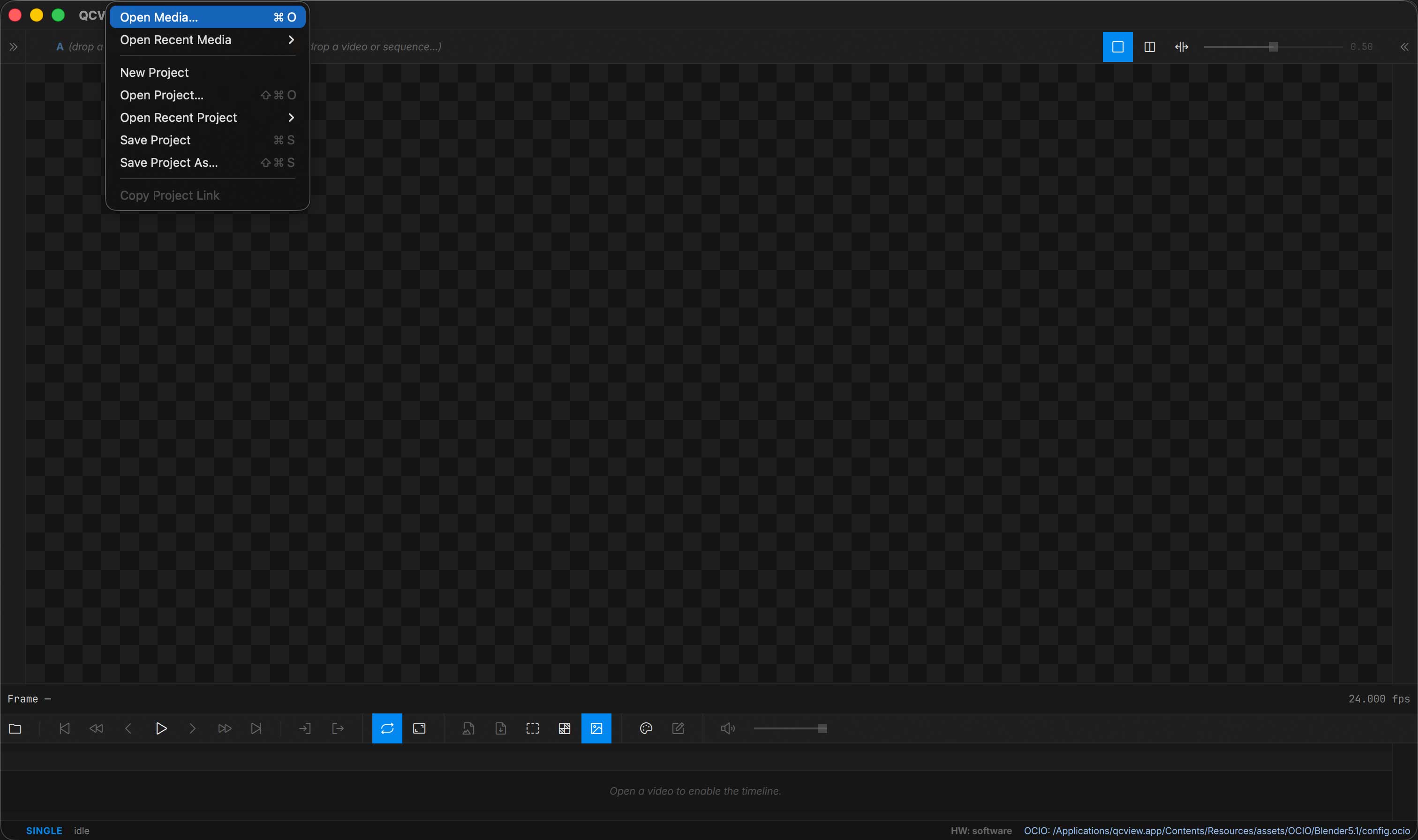
| Action | Shortcut |
|---|---|
| Open Media | Ctrl + O |
| Open Stream | Opens a live stream by URL (e.g. srt://…) |
| Connect to After Effects / Premiere Pro | Receive a live source from the QCViewBridgeAE add-on |
| Open Project | Ctrl + Shift + O |
| Save Project | Ctrl + S |
| Save Project As | Ctrl + Shift + S |
| New Project | Clears the current project |
| Copy Project Link | Copies a qcview:// link to the saved project (see Project Links) |
Recent media and recent projects are also reachable from the Open Recent submenus.
Drag and Drop
You can drag files directly into the app. Drag one or more files to the viewport to load them immediately, or onto the Project panel’s media list to add them to the project; the list outlines in blue while you’re over it.
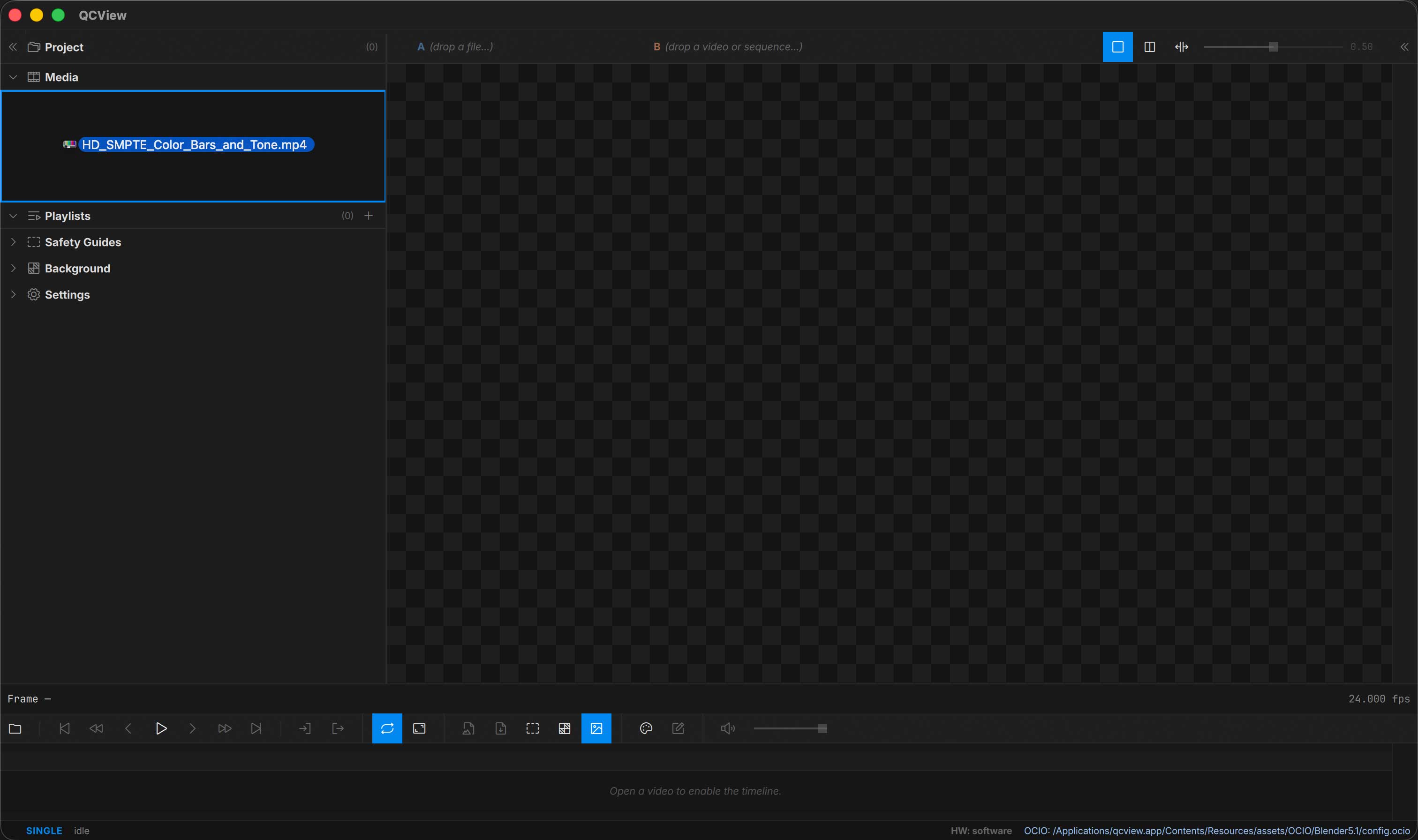
To load files already in your project, double-click them in the media panel or drag them into the viewport.
Layout
Panels
Toggle panels from the View menu or with keyboard shortcuts:
| Panel | Shortcut |
|---|---|
| Left Rail (Project, Settings, Background, Safety) | Ctrl + 1 |
| Right Rail (Scopes, Inspector, Shortcuts) | Ctrl + 2 |
| Color Panel | Ctrl + 3 |
| Notes | Ctrl + 4 |
| Status Bar | Ctrl + 5 |
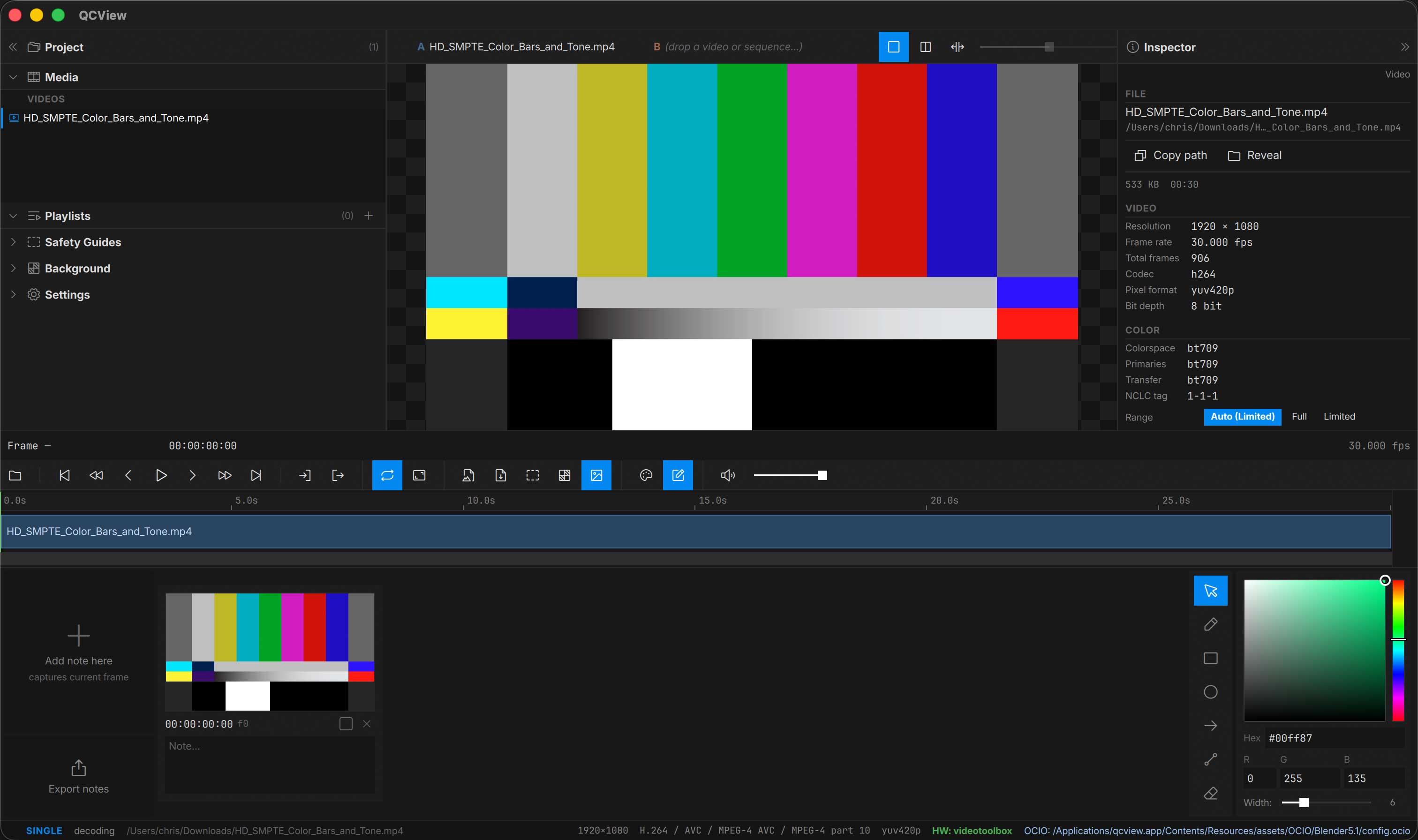
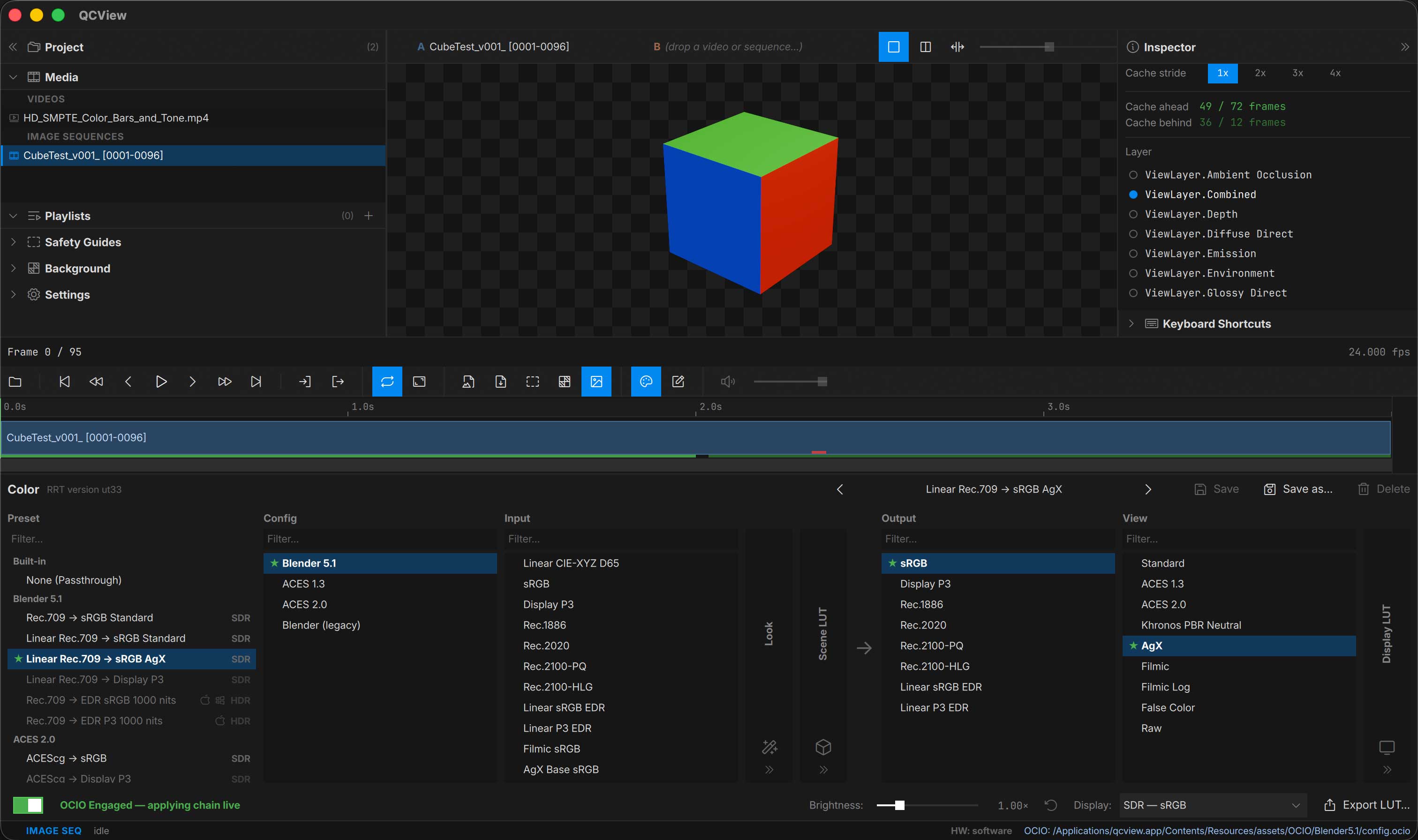
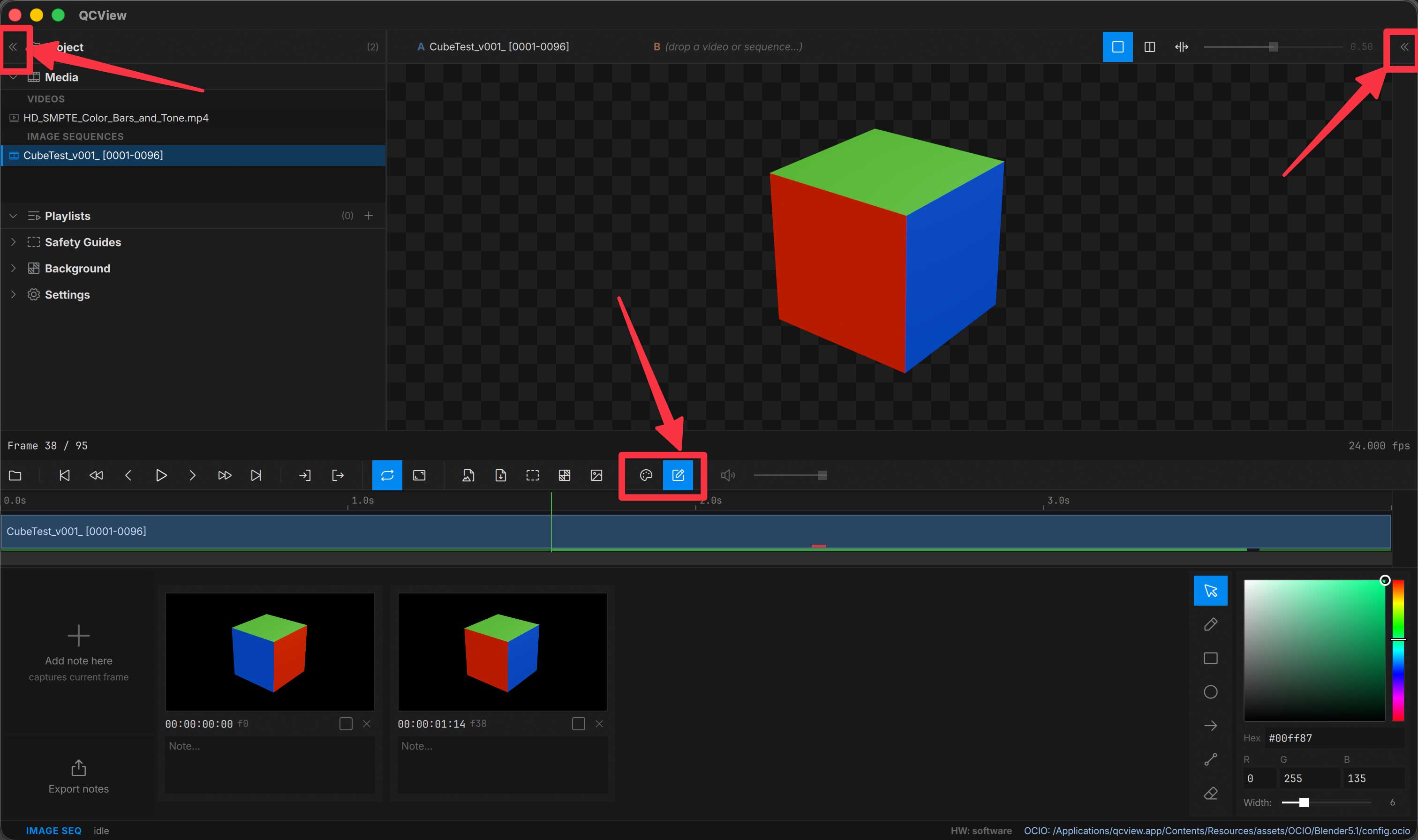
You can also use the mouse to toggle panels. Rails can be opened and closed by clicking the caret buttons in their headers. The color and notes panels can be opened via buttons on the transport row.
Layout Presets
| Preset | Shortcut | Description |
|---|---|---|
| Minimal Mode | Ctrl + 0 | Viewport + transport only; the rails collapse to their slim strips |
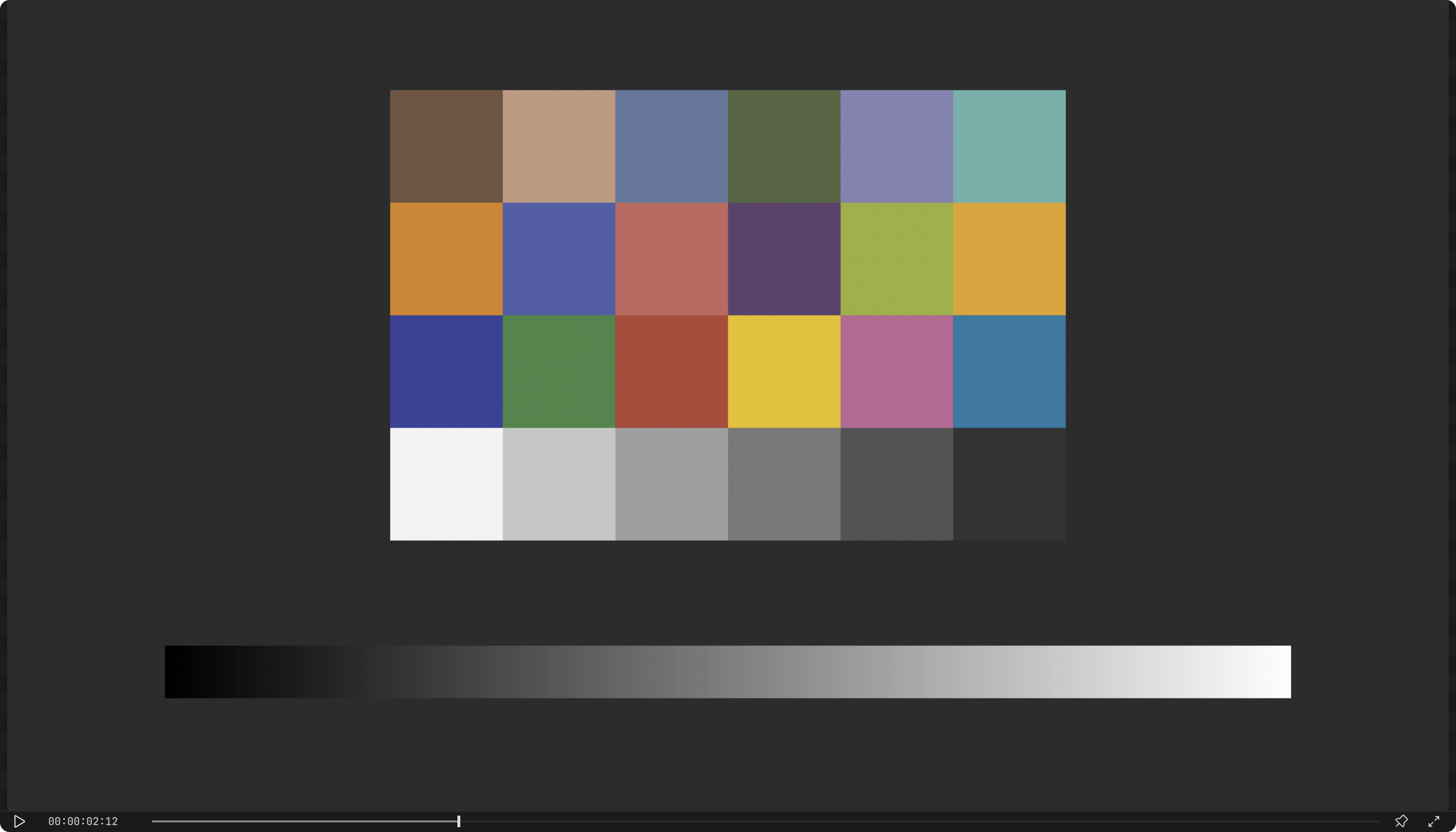
| Compact Mode | Ctrl + Shift + C | Viewport plus one slim strip: play / pause, timecode, a scrub line, the pin and exit. Press Ctrl + Shift + C again, Esc, or the strip’s ✕ to leave; your panels come back as they were |
| Always on Top | Ctrl + Alt + T | The window stays above every other app’s — handy for a reference beside an editor or a browser. The pin button in the transport row and on the Compact strip is the same toggle; the choice is remembered |
| Show All Panels | Ctrl + 9 | Opens every panel |
| Default View | Ctrl + R | Rails, timeline, Color panel and status bar |
| Fullscreen | F | Viewport only, no UI. Press F or Esc to exit |
Compact Mode is for a window that is nothing but the picture: every panel, rail and toolbar goes away, the window loses its title bar, and a 22 px strip under the viewport keeps a play / pause button, the timecode, a scrub line with the playhead and in / out marks, a pin (Always on Top) and an exit button; F still toggles fullscreen. The transport row has the same Compact Mode and pin buttons next to fullscreen. Drag the timecode to move the window; the window’s edges still resize it. Scrubbing on the strip works the way the timeline does, in single, dual and playlist view. Live sources show a live dot instead of the playhead. On macOS the menu bar stays at the top of the screen; on Windows the menu is hidden with the rest of the chrome, so use the shortcuts (Alt + F4 still closes the app).
Backgrounds and Overlays
Backgrounds
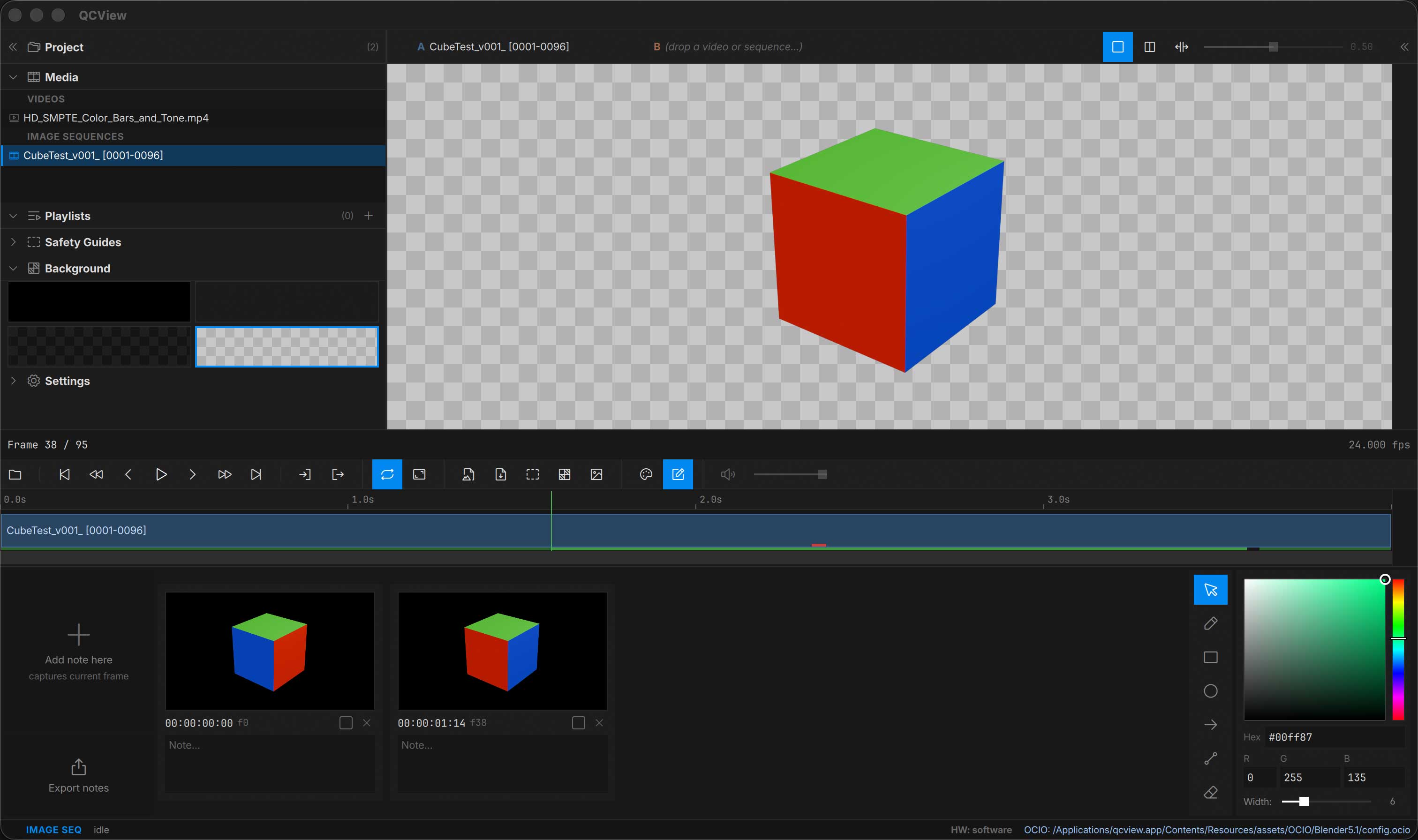
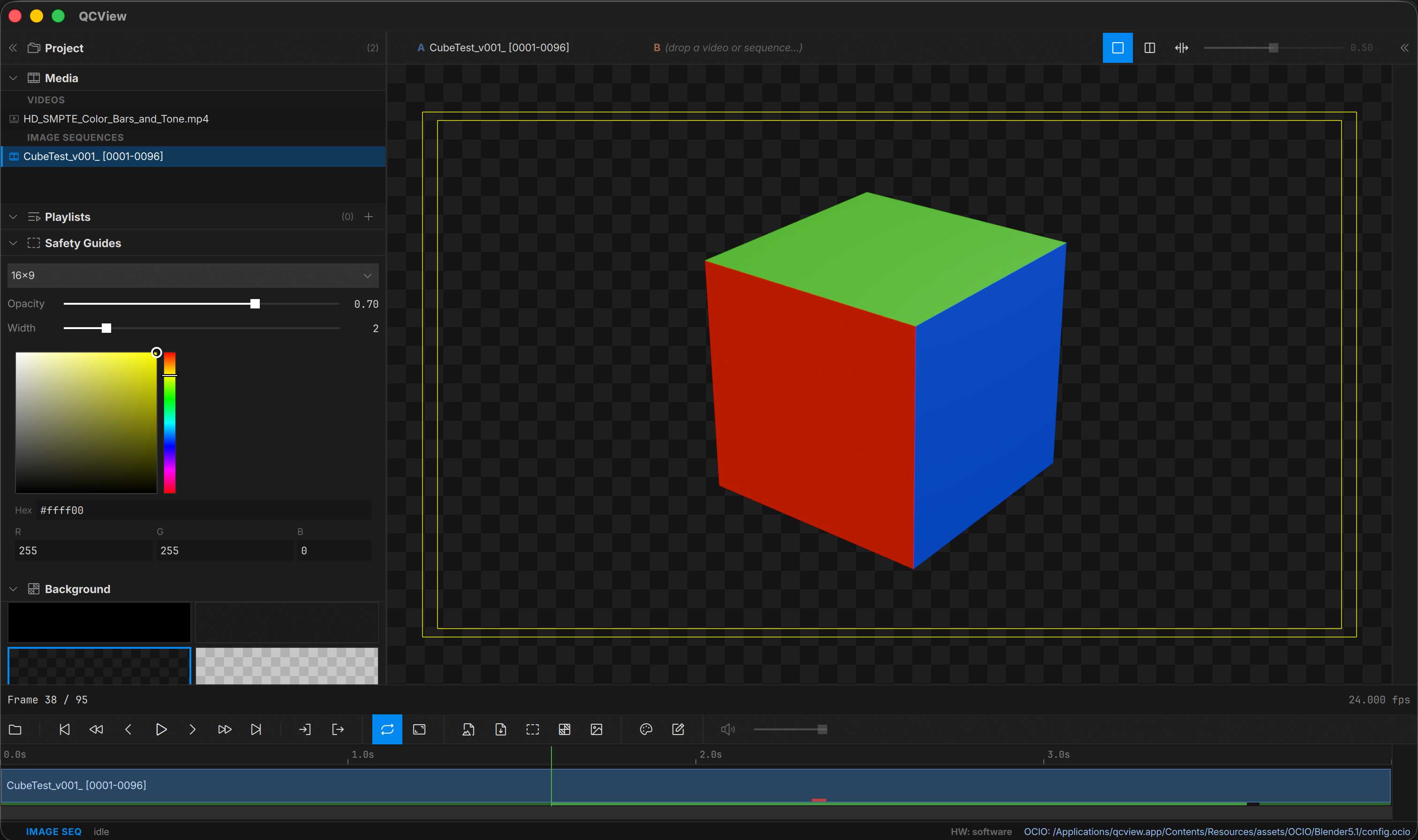
QCView provides background options for reviewing alpha-channel media: grey, black, light checkerboard, dark checkerboard. Alpha channels in any media pass through to the selected background. Open the Background section from the Left Rail (Tools menu → Background, or Ctrl + 1 then expand).
Title Safety Guides
Open the Safety Guides section in the Left Rail (Tools menu → Safety Guides) to overlay broadcast and social-media safety guides on the viewport.
Keyboard Shortcuts
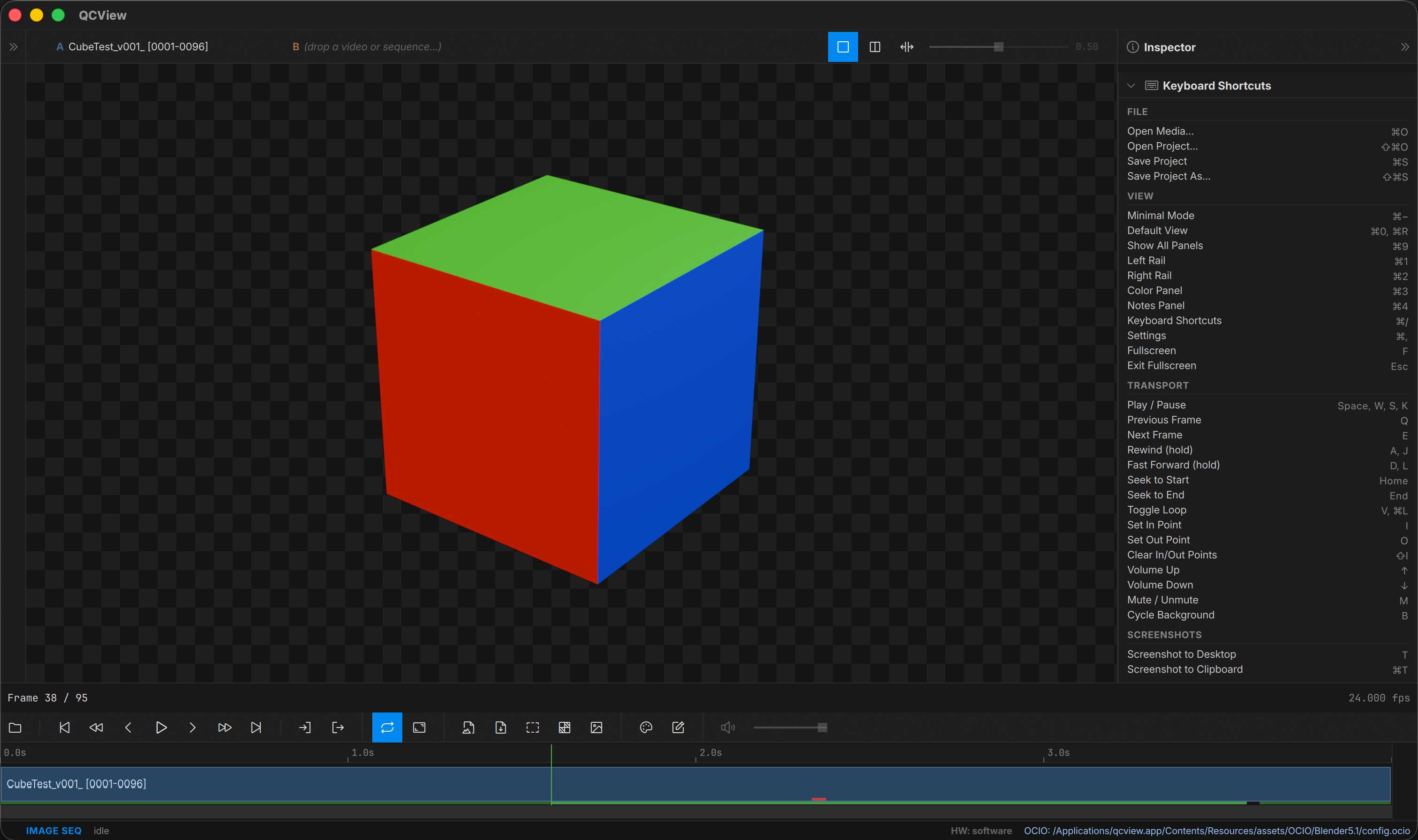
The full keyboard shortcut reference lives at the bottom of the Right Rail under Keyboard Shortcuts (Ctrl + /).
Settings
The Settings panel opens in the Left Rail (Ctrl + , or Tools menu → Settings…).