App Basics
Opening files
The Menu
There are a few ways to load files. You can simply drag one more file into the app. Or you can use the File menu to Open Media Ctrl + O, Open Project Ctrl + Shift + O. In this menu, you can also create a New Project (this will wipe out your current project), a New Playlist, or a New Dual View.
Drag and Drop
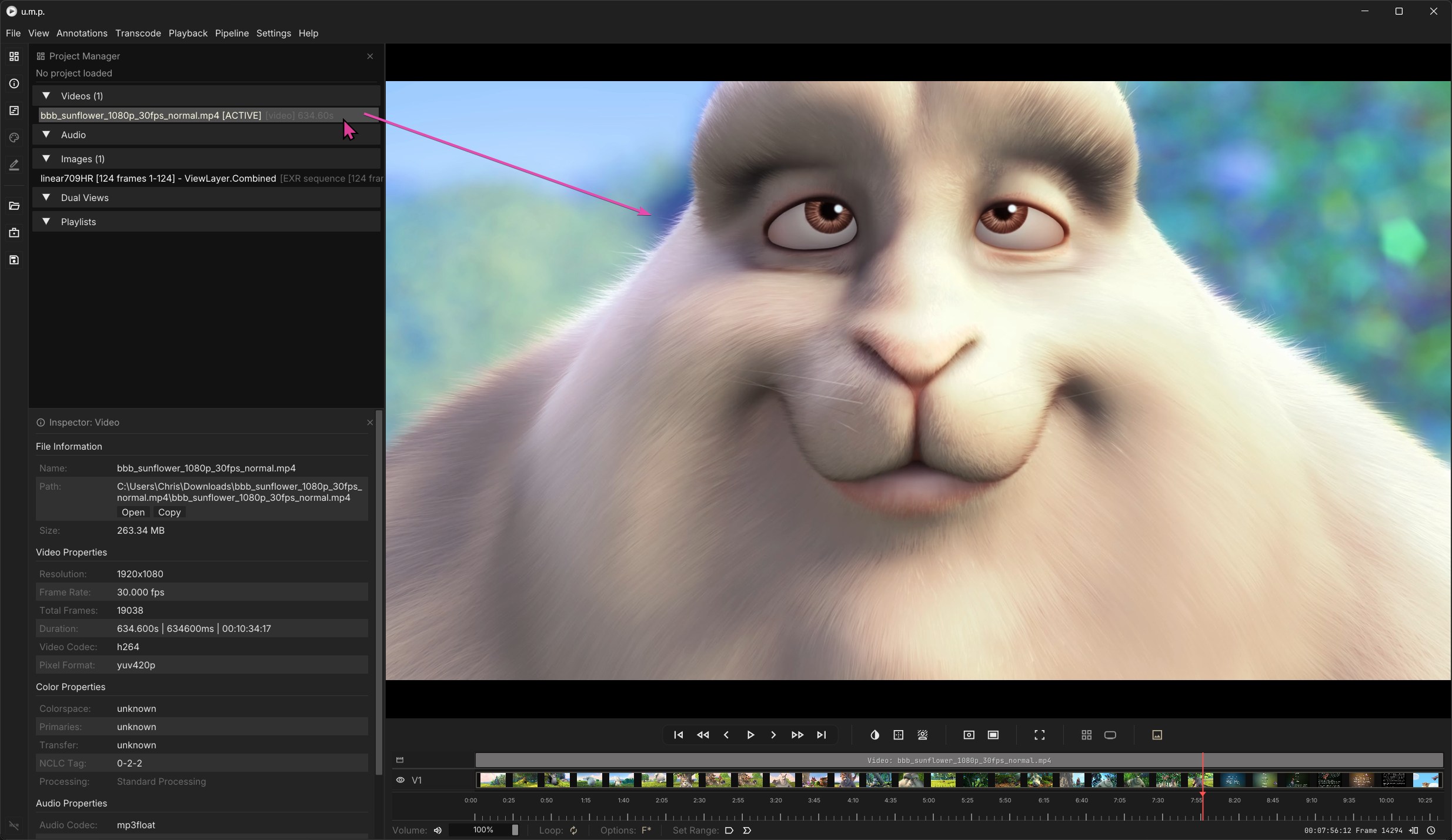
To load files you have already opened, you can double-click on them in the Project Manager or drag them into the Viewer. The Viewer’s border will be highlighted if a drop is detected.
The Layout
Panels
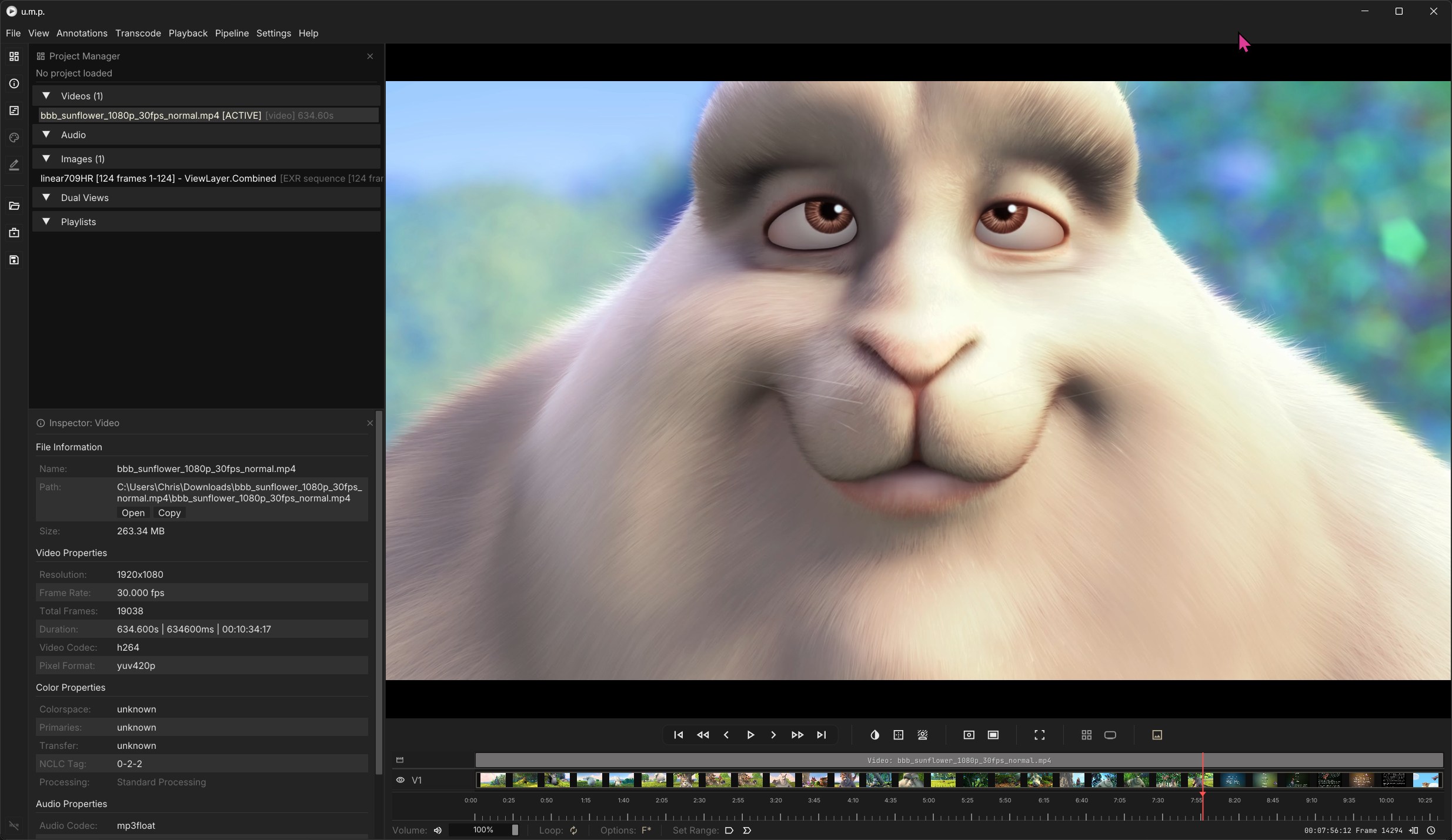
In the View menu, you can toggle the different app panels:
- The Project Panel
Ctrl + 1 - The Inspector Panel
Ctrl + 2 - The Timeline Panel
Ctrl + 3 - The Color Panels
Ctrl + 4 - Annotations
Ctrl + 5 - Sidebar
Ctrl +7
You also have a few helpful shortcuts for layout management:
Default View
Ctrl + 0 reverts the app to a default view with key panels for media management.
Show All Panels
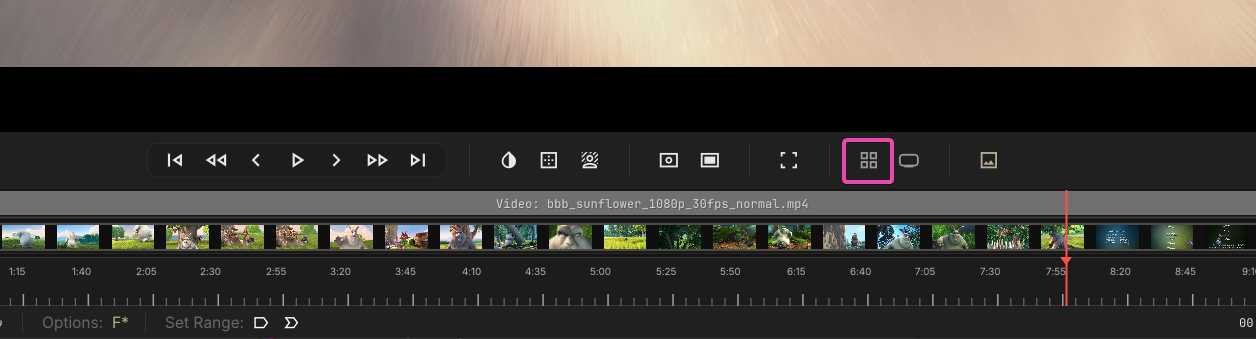
Ctrl + 9 opens all the panels.
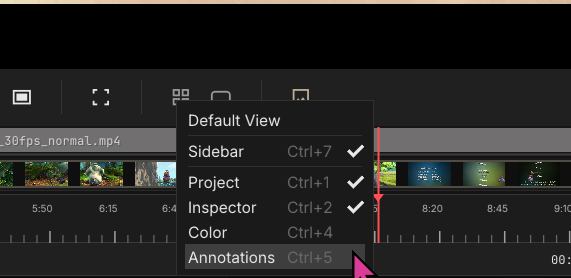
A mouse right-click reveals panel toggles.
Minimal View
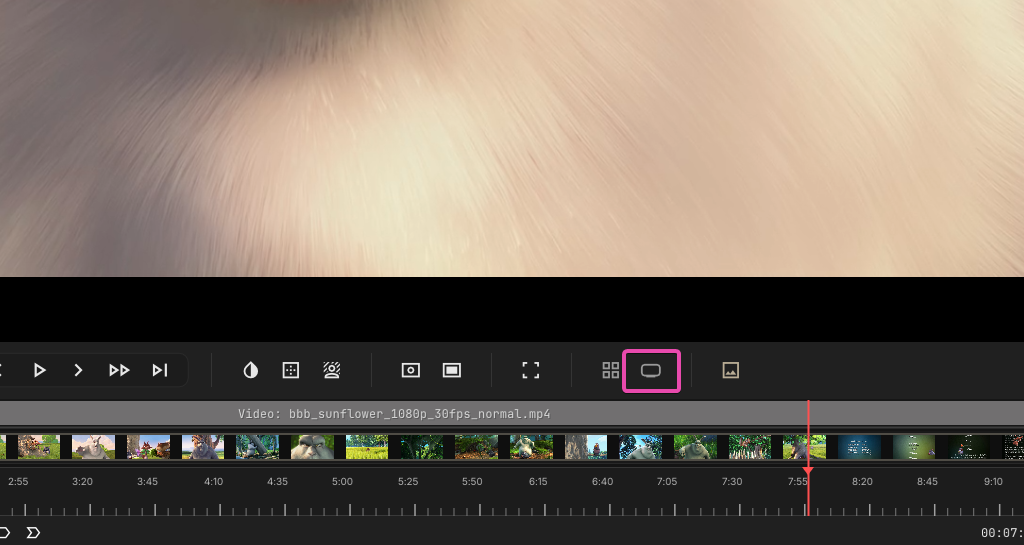
Ctrl + - simplifies the layout to just the Viewport and timeline—-the more traditional video player layout. This is a toggle state. You can click it again to return to your previous layout.
Full Screen
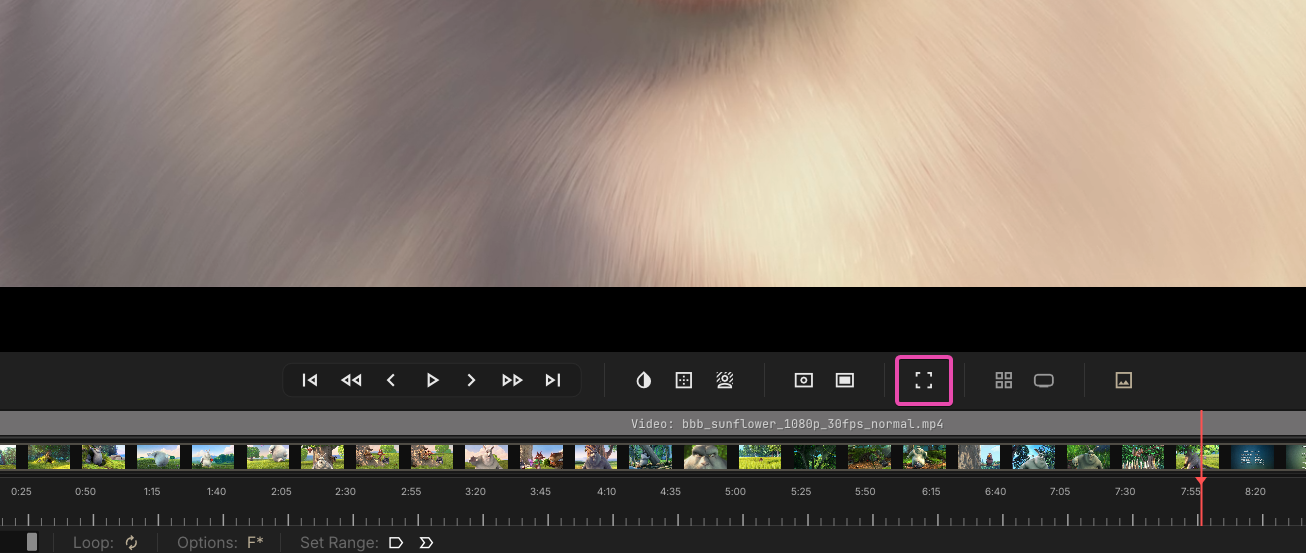
F will toggle the full-screen mode without the timeline. You can escape by pressing F again or esc.
Closing Panels
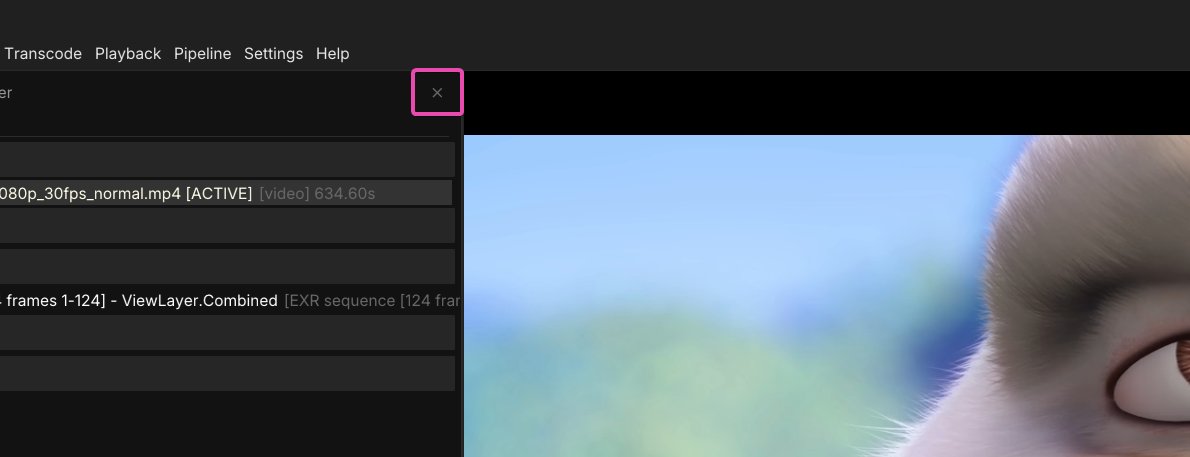
Clicking the X button in the top-right will also close a panel.
Resizing the Layout
You can resize panels by dragging the dividers.
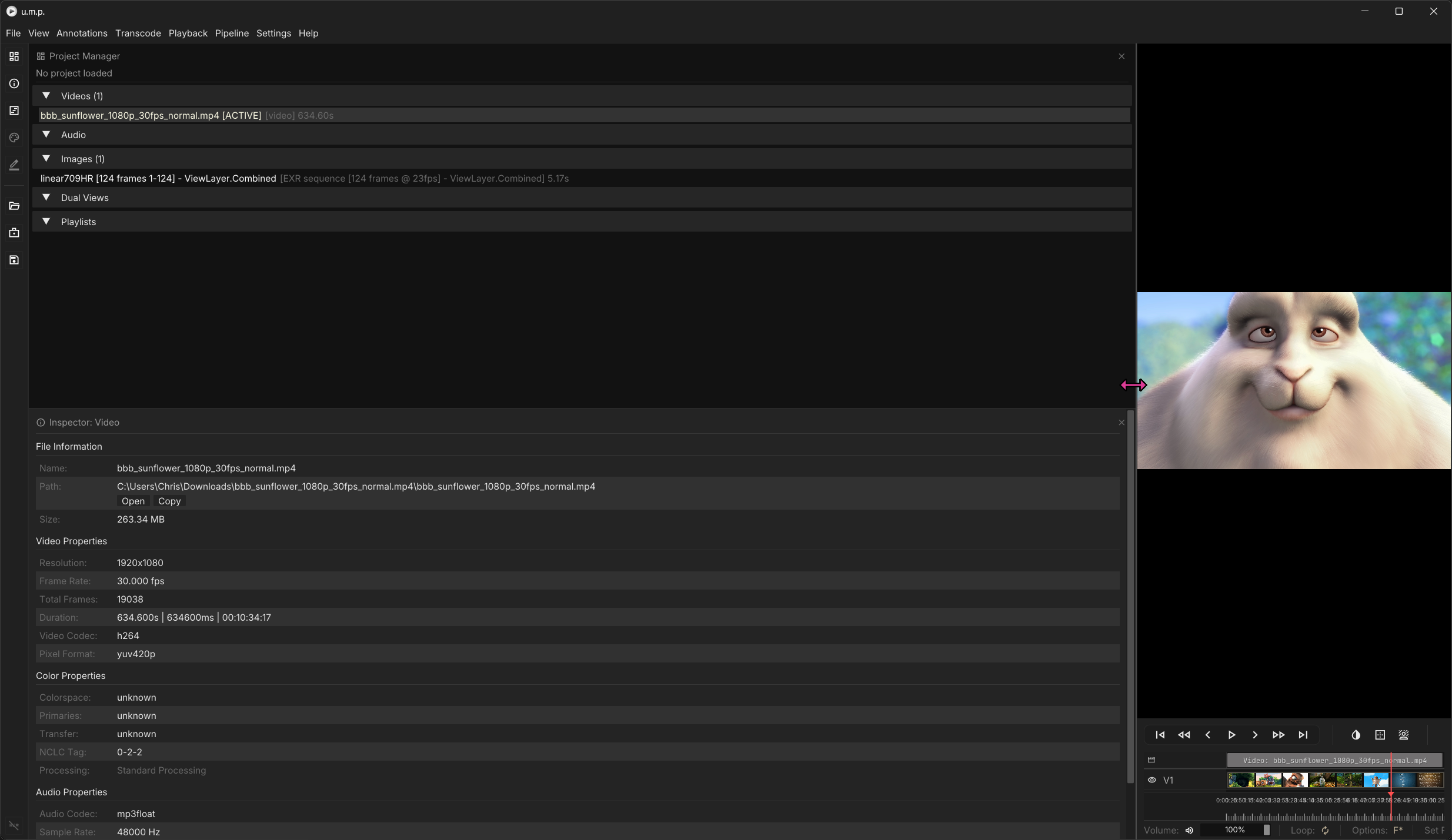
Ctrl + R or View > Reset Layout in the main menu will restore default proportions.
Backgrounds and Overlays
Backgrounds
Thee are four possible backgrounds that will appear behind alpha channels in all media.
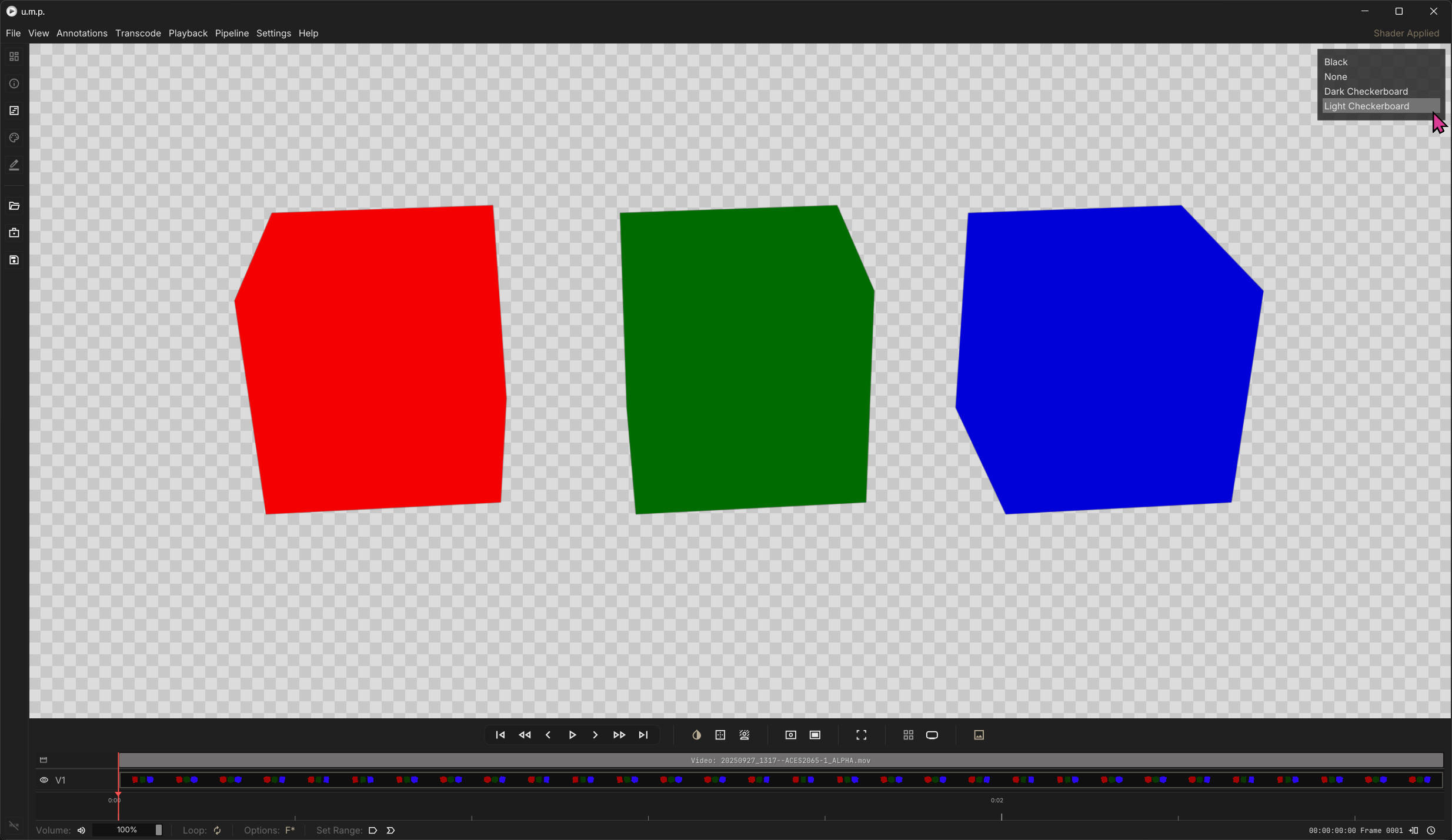
Ctrl + Shift + B or the background button opens the Video Background panel and lets you select one of four background options (default grey, black, dark checker board or light checkerboard). Alpha channels in any media will pass through to the background, so you can use them for alpha review. Pressing B will cycle through the options without using the panel for selection.
Safety Guides
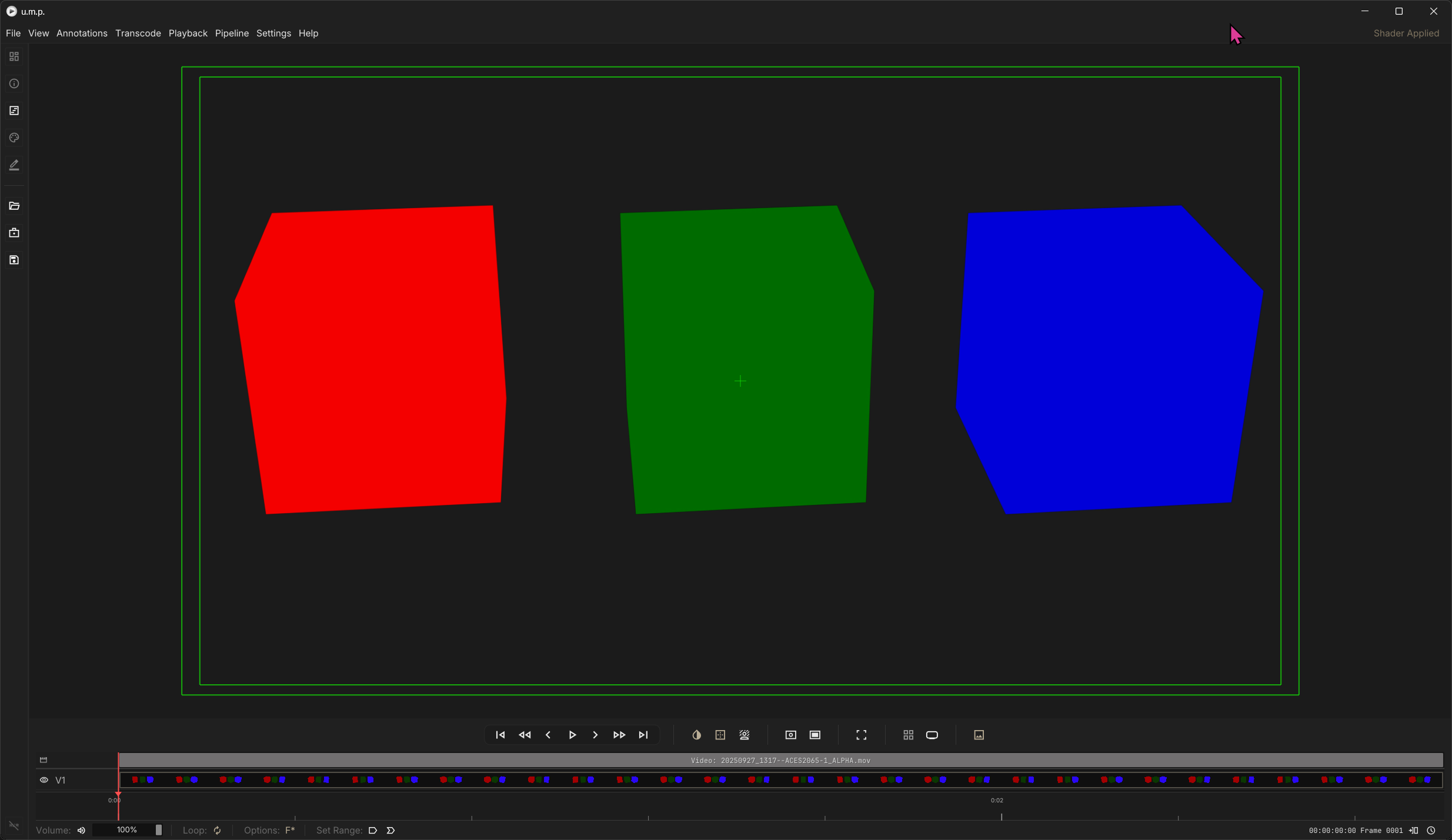
Ctrl + / or the button below opens the Title Safety panel, where you can select various title safety options to overlay your Viewer with. You can select a color with the color picker, and this color will be saved in your personal settings. Once a safety guide has been applied, toggling the button again will remove it.
OCIO Presets
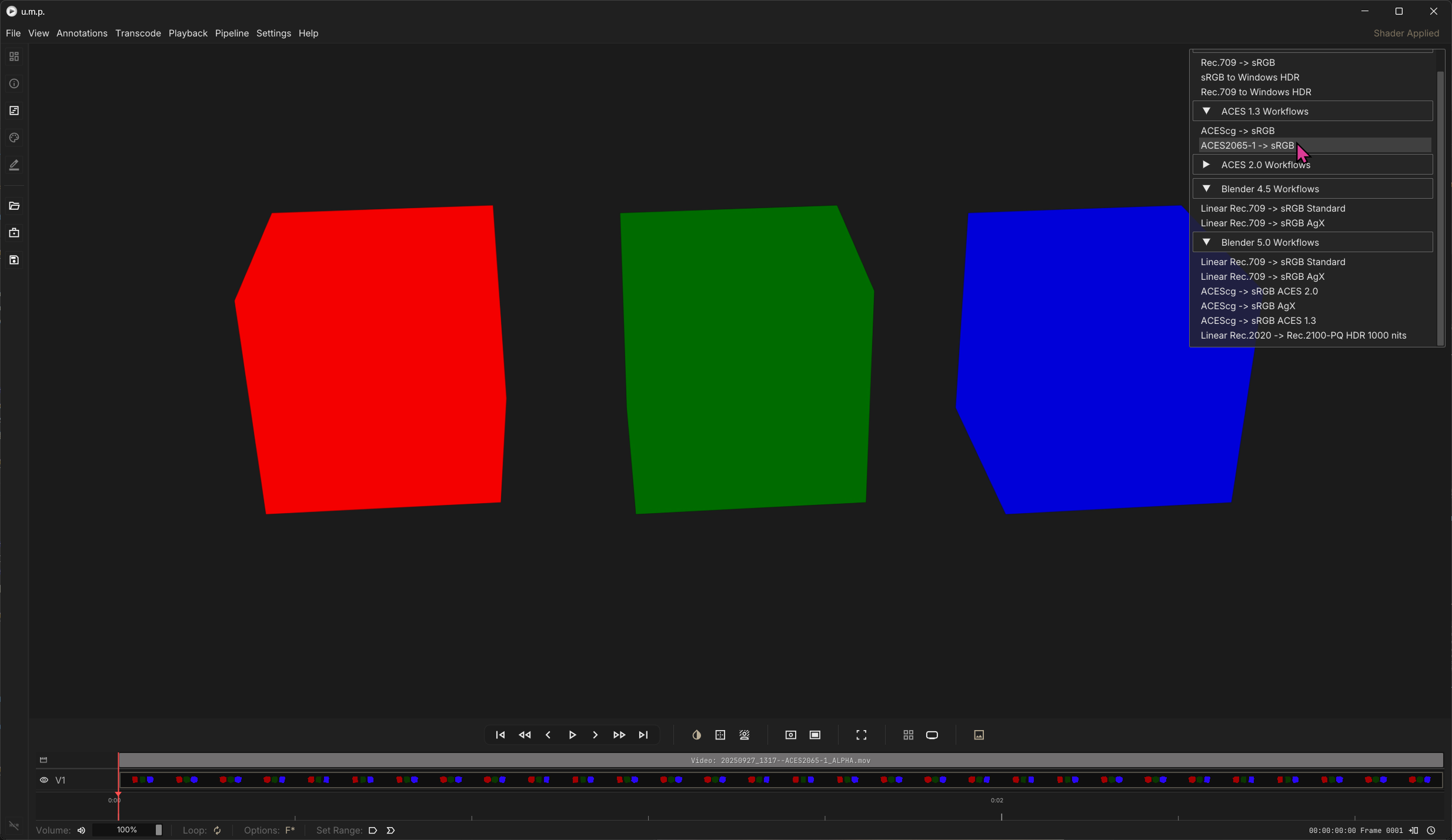
Ctrl + C or the button below opens the OCIO Color Preset panel. Enabling one of these options applies an OCIO node-tree preset to your Viewer, and everything in the Viewer will have this color correction applied. See the OCIO Nodes page for more details on how these presets work.
Themes
Color Theme Options
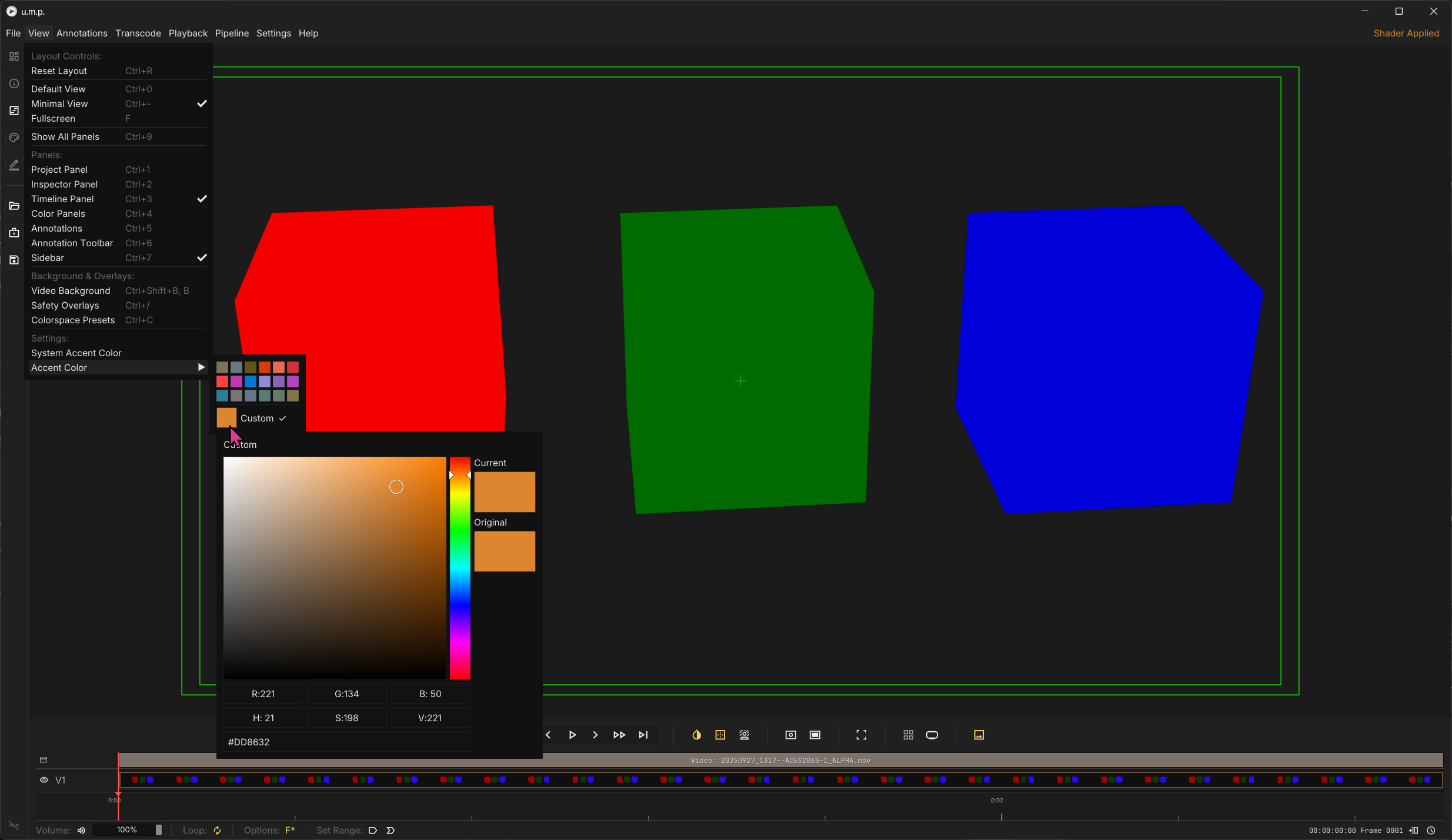
Toggleing System Accent Color will use your Windows Accent Color. You can also select a color theme from one of these options.