Dual View
Comparsion views for two videos or image seqeuences
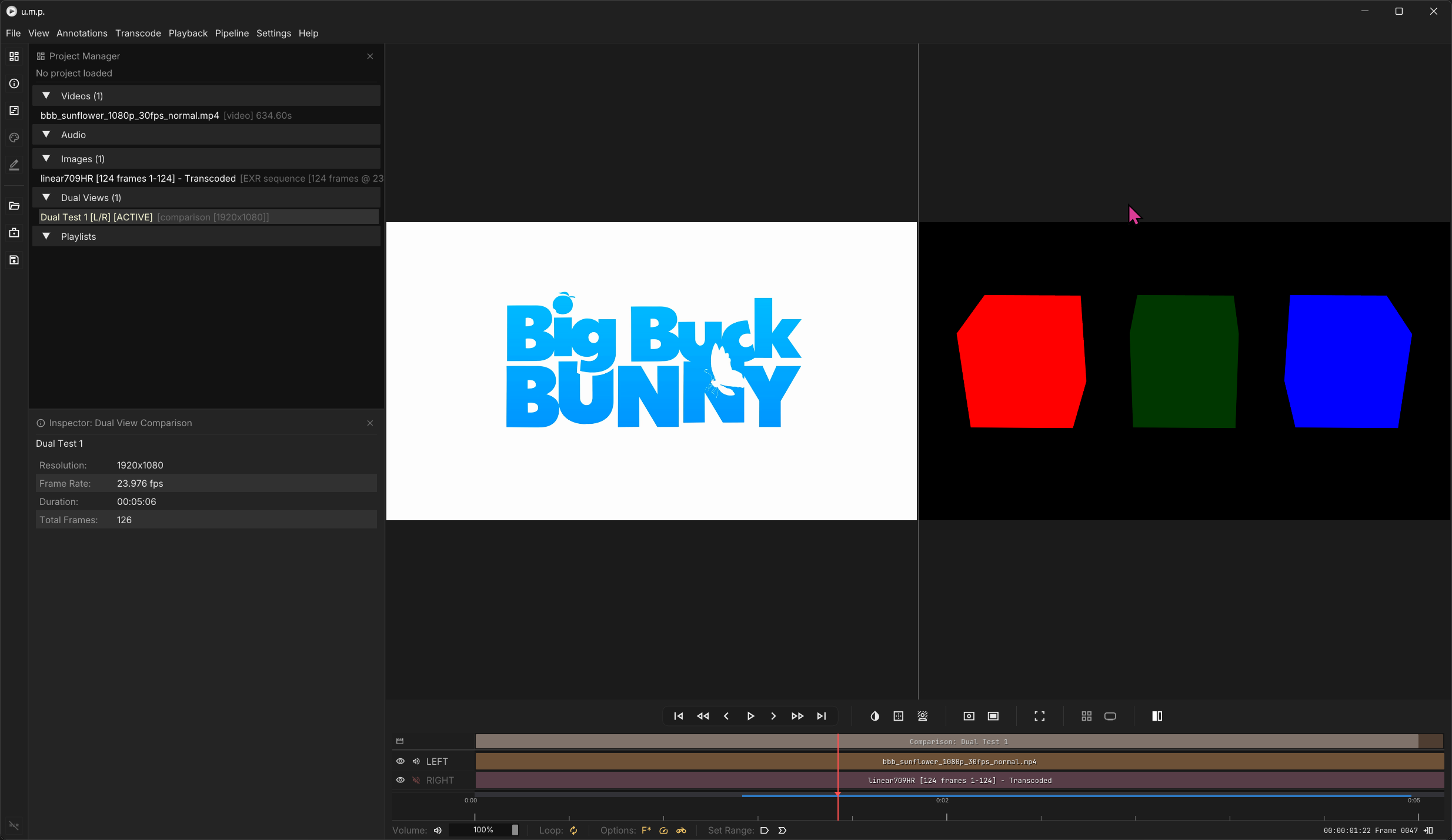
To compare two media items (videos or image sequences), you first need a Dual View setup. Right click on the Dual View bin or navigate to File > New Dual View to create one.
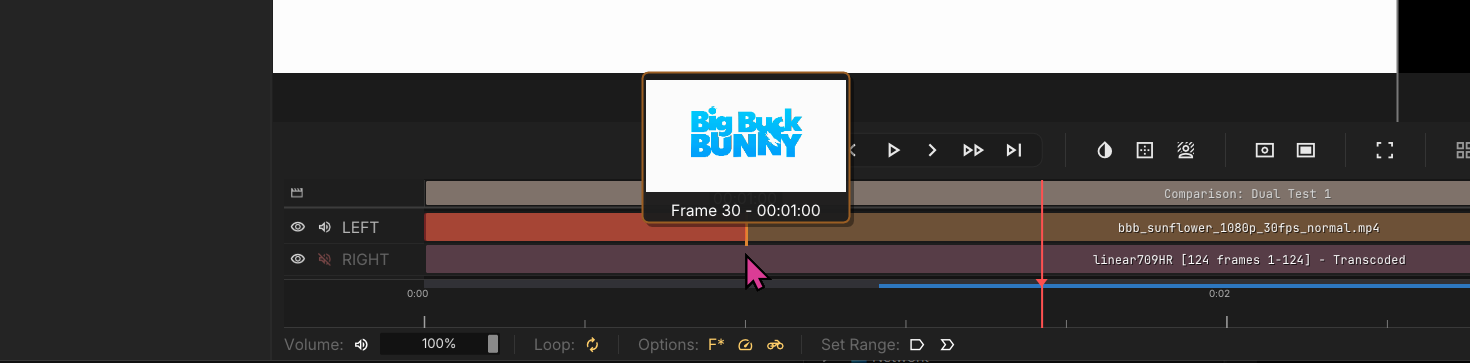
The setup is similar to a multi-track timeline, but instead has tracks for LEFT, and RIGHT. Drag your media into each track or drop into the viewport to load them together. The default option is side-by-side.
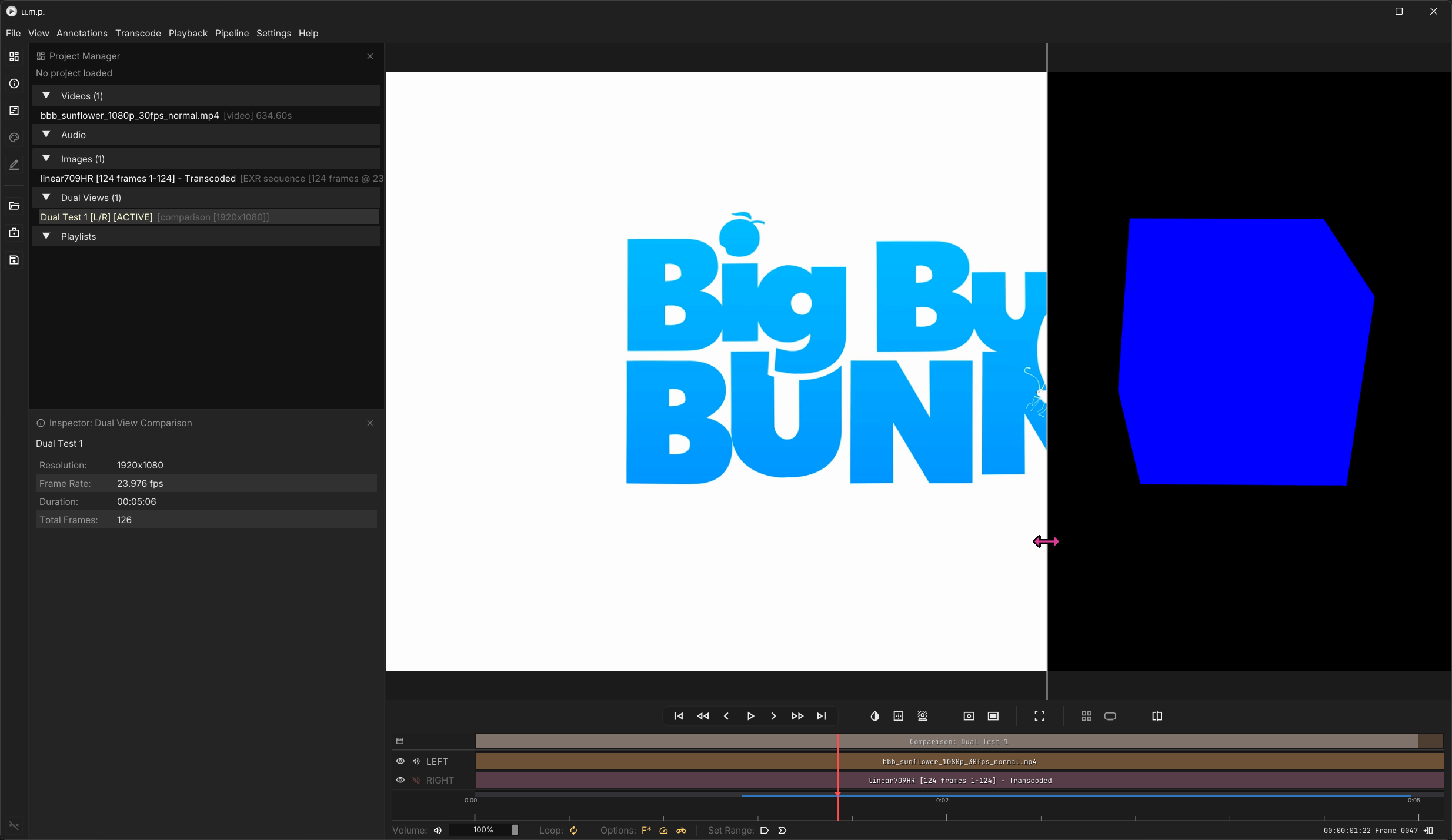
This button will change to a split screen view where you can drag the divider as you play.
Audio
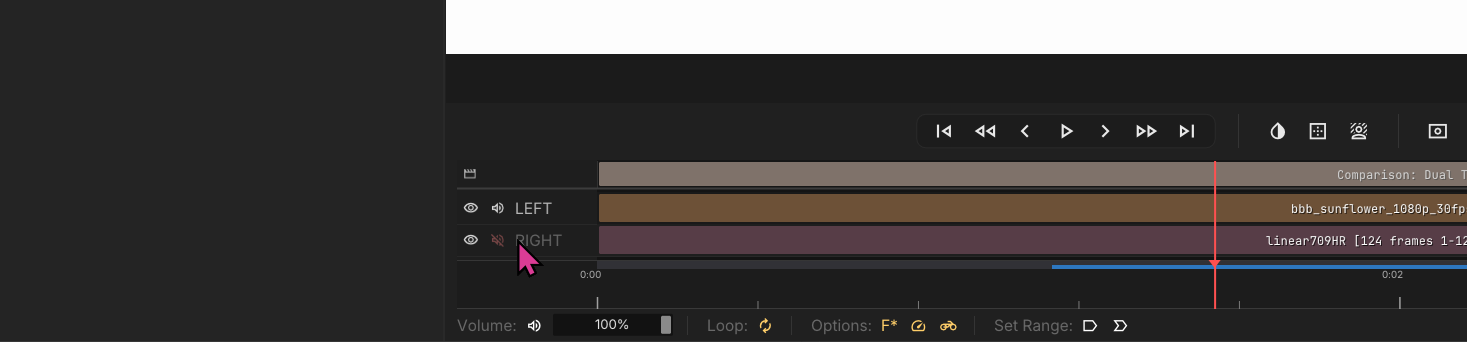
You can toggle both sources at once to mix down all audio, or solo only one side for review. By default, the right side is muted.
Lineing Up Both Videos
Drag & Trim
Like the Timeline view, you can drag clips on the timeline or trim their ends to line up them up. You can trim off slates with the same Cntrl + K or Edit button click.