Output
The Output section in the Left Rail sends what the viewport shows, with the mixed audio: as an NDI® source, out of an AJA device’s SDI and HDMI, or as a stream over SRT or RTMP.
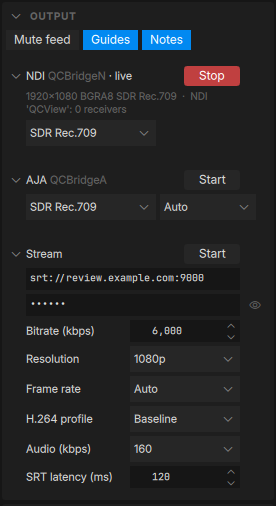
Each output is a card: its name, one word of state and Start / Stop in the header, a summary line while the card is closed, and the controls behind the chevron. Nothing is sent until Start. Starting an output does not change playback.
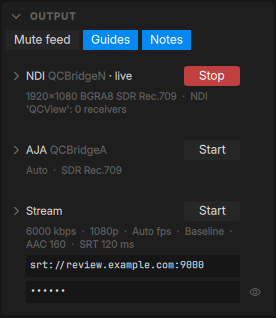
What goes out
- The picture is the viewport’s composite at the output’s raster, letterboxed when the aspect differs. OCIO or minColor transforms, dual-view layouts and the difference view are applied as on screen.
- Mute feed (the chip at the top) silences the audio on every output without touching your own monitoring.
- Guides and Notes (the other two chips) add the safety guides and the note strokes as layers. A note’s frozen frame in Review is sent as the viewport shows it.
- Live feeds go out at the feed’s own rate (a 23.976 Premiere sequence stays 23.976).
- Raster (per output, for sinks that leave it to QCView such as the AJA sink): Auto sends UHD (3840×2160) for anything above 1080p and 1080p otherwise, switching when the source changes; 1080p and UHD fix it. The picture is letterboxed into the raster either way.
- Transfer (per output, for sinks that carry it such as SDI or HDMI): SDR Rec.709, PQ Rec.2100 or HLG Rec.2100. This is what the wire is told and signals; the picture itself goes out as the viewport shows it, so the display is chosen once, in the colour panel (OCIO or minColor), and a Premiere or After Effects feed that is already PQ or HLG passes straight through. PQ adds the mastering metadata the monitor reads: primaries (Rec.2020 or P3-D65), peak, MaxCLL and MaxFALL in nits.
NDI (QCBridgeN)
Install QCBridgeN (its own page: NDI) and switch it on in the Output section. QCView starts the sink as a separate application, publishes the viewport to it while it is attached, and the sink offers an NDI source named QCView on the local network. The row shows how many receivers are connected. The sink quits with QCView or when the output is switched off.
AJA SDI / HDMI (QCBridgeA)
Install QCBridgeA with AJA’s own driver and software for the device (its own page: AJA), and switch it on in the Output section. QCView starts the sink, which takes the device exclusively (the way AJA’s applications do; it reports who holds it otherwise), asks QCView for the raster the row’s Raster setting names, and sends the viewport and the mixed audio over SDI and HDMI as 10-bit RGB at the source’s frame rate. The row shows the device, the format and the connectors, for example “T-TAP Pro UHDp25 10-bit PQ 2020, SDI + HDMI RGB”. The transfer and the raster can be changed while it runs; the card reconfigures in place. UHD goes out as one 12G stream and needs a device with 12G routing (T-TAP Pro, Kona 5 and Corvid 44 with 12G firmware, Io 4K Plus); above 30p the HDMI side carries YCbCr, as 10-bit RGB 4:4:4 does not fit HDMI 2.0 there. The sink quits with QCView or when the output is switched off.
Stream (SRT or RTMP)
The Stream card sends the viewport and audio to a streaming server. The URL and key stay in view; the encoder settings open with the chevron. QCView encodes with the platform’s hardware encoder (VideoToolbox on macOS, Media Foundation on Windows) and muxes in-process, so there is no OBS or capture card in between.
| Setting | What it does |
|---|---|
| URL | srt://host:port or rtmp://host/app (rtmps:// for TLS). |
| Key | For SRT, sent as the stream id. For RTMP, appended to the URL as the stream name. Hidden by default; the eye reveals it. |
| Video bitrate | kbps, constant-rate. 6000 suits 1080p; 4000 suits 720p. |
| Resolution | 2160p, 1080p, 720p or 540p. The picture is letterboxed into it. |
| Frame rate | auto takes the source’s rate when the session starts; or a fixed 24, 25 or 30. The rate is fixed for the session; a paused viewport repeats its last frame. |
| Profile | H.264 Baseline (the widest compatibility, and what Louper’s guide asks for) or Main. |
| Audio | AAC bitrate, or off. |
| SRT latency | The SRT receive buffer in milliseconds. 120 is a good start on a LAN; raise it on a lossy link. |
While a session runs the row shows its state, the measured bitrate and frame rate, and a counter line: frames encoded, repeated (a paused picture) and skipped, plus dropped frames, send errors and reconnects when there are any.
Streaming to Louper
- In Louper, open the room’s stream settings and copy its SRT (or RTMP) URL and stream key.
- In QCView’s Output section, paste the URL and the key, choose 1080p at 6000 kbps, Baseline, audio 160 kbps, and leave the frame rate on auto.
- Press Start. The row reads connecting, then streaming with the bitrate; Louper’s viewer shows the picture a moment later.
- Play, scrub, switch sources or enter dual view as usual. The stream follows the viewport. Stop ends the session.
The same block streams to any SRT listener or RTMP server: an ffmpeg -i "srt://:9000?mode=listener" … on another machine, an nginx-rtmp or a MediaMTX instance, a cloud ingest.
If the connection drops
QCView keeps the encoder running and reconnects on its own, waiting 1, 2, 4, 8 and then 10 seconds between attempts, until the server answers or you press Stop. The session resumes at a keyframe. The counter line shows how many times it reconnected.
Where the settings live
The stream settings persist between sessions. The key is stored with them; treat the preferences file as you would any file holding a stream key.