QCBridge for Blender
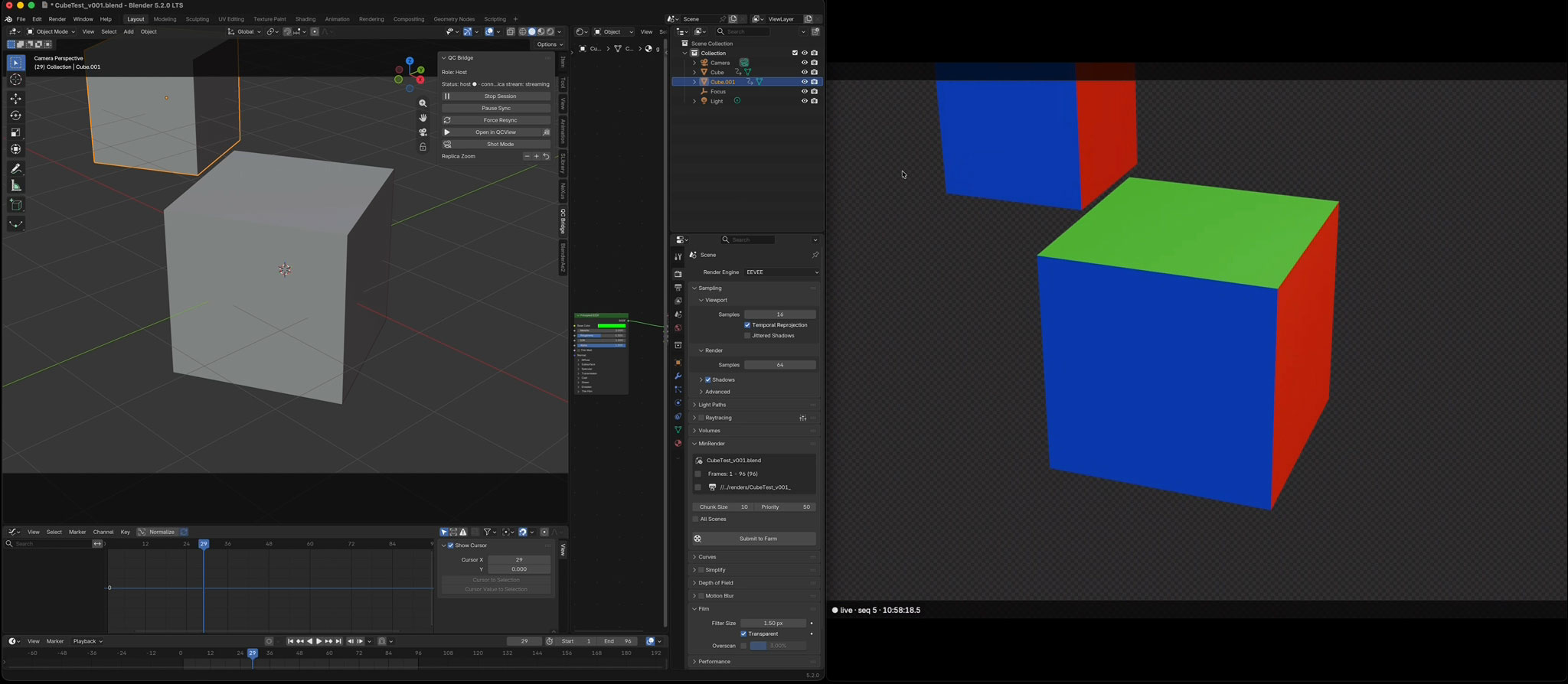
QCBridge for Blender’s primary purpose is to sync a live Blender project to Blender on another computer and use that second computer to generate a live Eevee or Cycles preview - a way to keep your main working computer’s resources dedicated to live operations and use a second for live-preview rendering. It works over VPNs; there is the option to use QCview as the live preview window.
It has two roles — Host (the machine you work on) and Replica (the render box).
Requirements
- Blender 4.5 or newer on both machines (5.2 LTS is the tested target).
- Both machines on the same network, or connected by a VPN (WireGuard-class works well).
- The project files reachable from both machines — typically shared network storage.
- For streaming into QCView: QCView 2.2.4+ (or higher) on both machines.
Installation
QCBridge is two installs on each machine, both from the QCBridge releases:
1. The agent — a small tray app that makes the connection between both computers and holds your settings. (Needs setup.)
- macOS:
QCBridge-Agent-<version>-arm64.pkg - Windows:
QCBridge-Agent-<version>-Setup-x64.exe
2. The extension — the zip goes into Blender as usual: Edit → Preferences → Get Extensions, the dropdown arrow (top-right), Install from Disk…, pick the zip.
Updating later is the same two steps with newer files. Your settings live with the agent and survive updates and reinstalls.
Setup
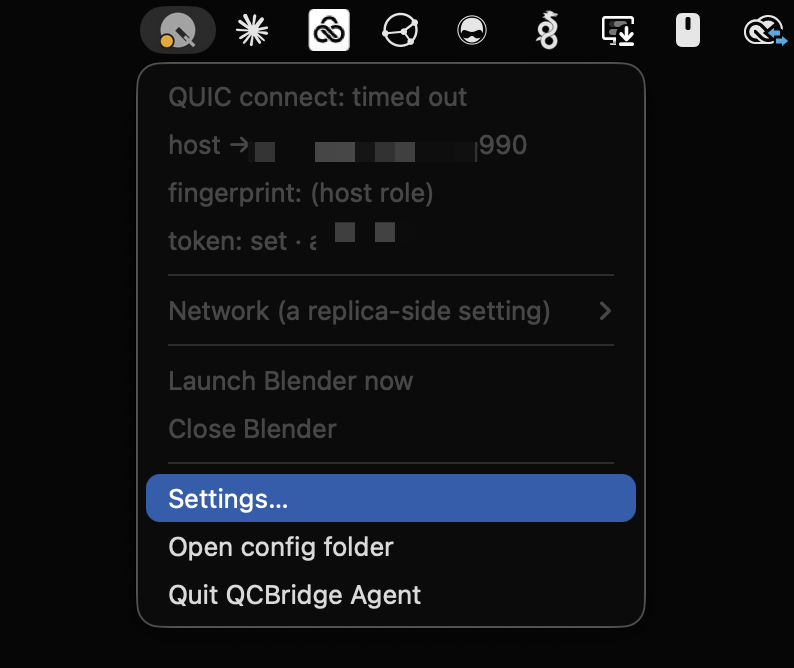
Everything about the connection lives in the QCBridge Agent and is set in its settings window — the same window on both machines. Open it from the tray icon’s Settings… item, or from Edit → Preferences → Add-ons → QC Bridge → Open Agent Settings in Blender. Changes apply as you make them; nothing needs a restart.
This machine
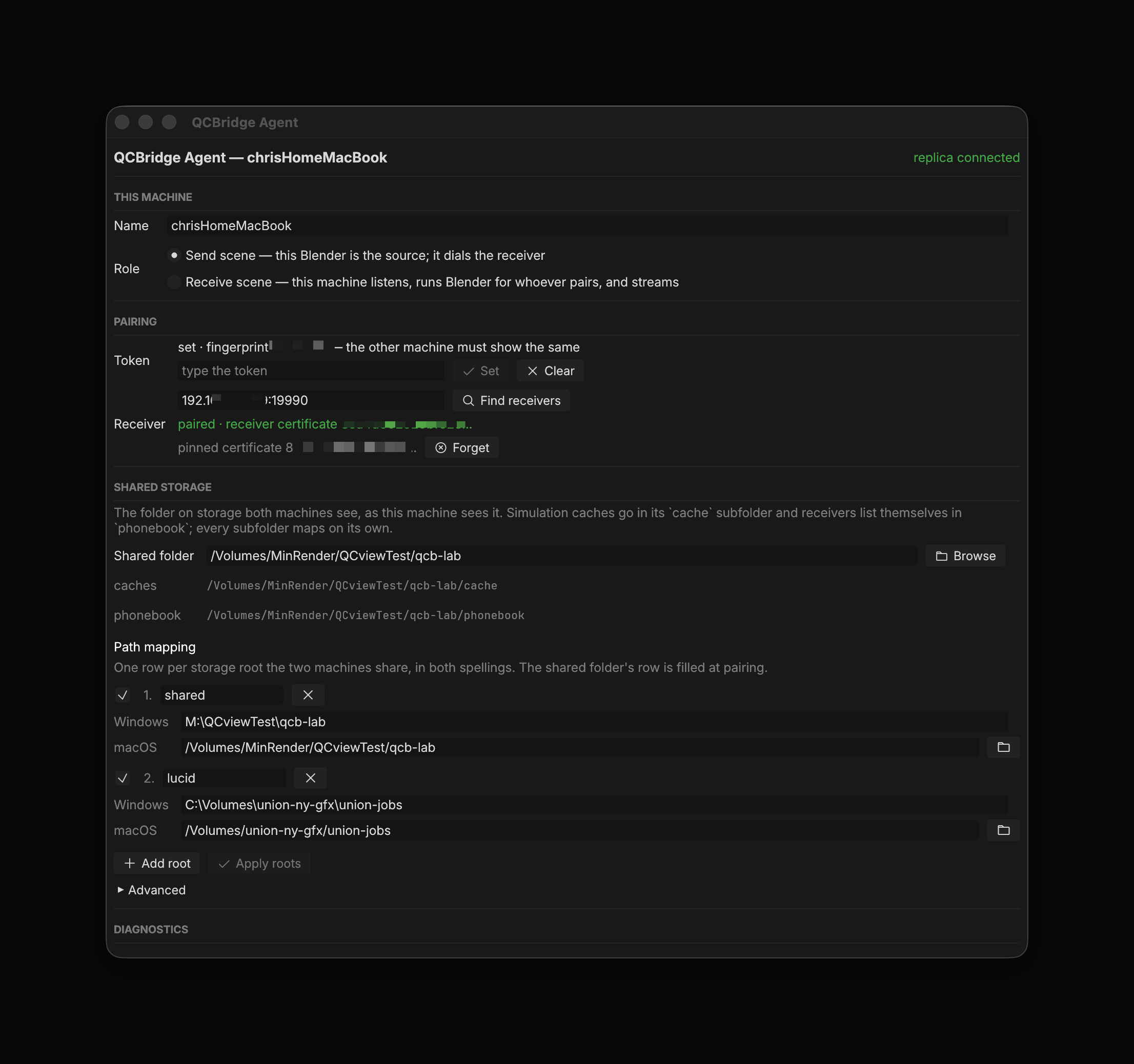
- Name — shown to the other machine and in the tray. Empty means the computer’s name.
- Role — Send scene on the host (your workstation); Receive scene on the replica (the render box). One agent per machine; the switch takes effect at once.

Pairing
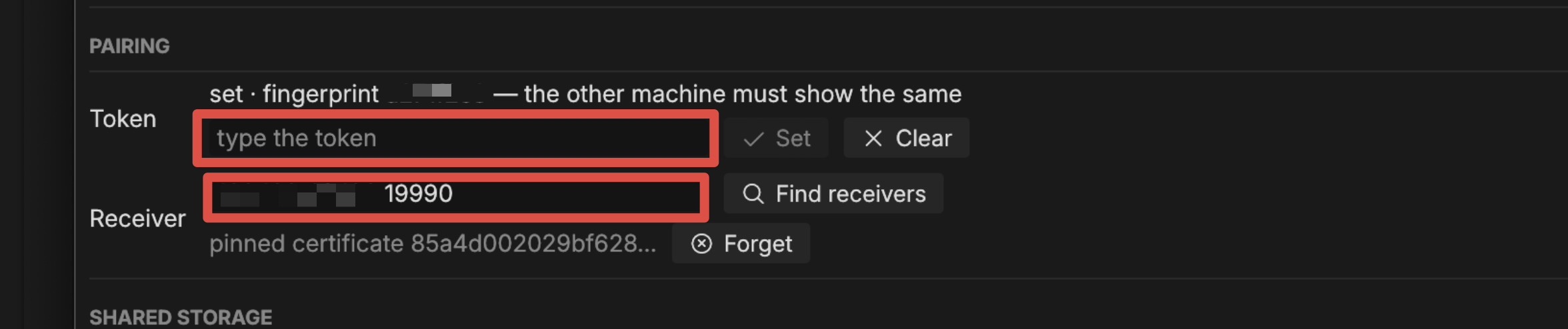
- Token — any short phrase, the same on both machines.
- Receiver (host only) — the replica’s address, or pick it from Find receivers and press Pair. Forget trusts it afresh.
Replica Hosting
- Blender — if you are in
Receive scenemode, ensure this points to your active Blender install.

Shared storage
- Shared folder — the folder on shared storage that both machines see. If you are sharing between multiple operating systems, ensure that you path map that network share below too.
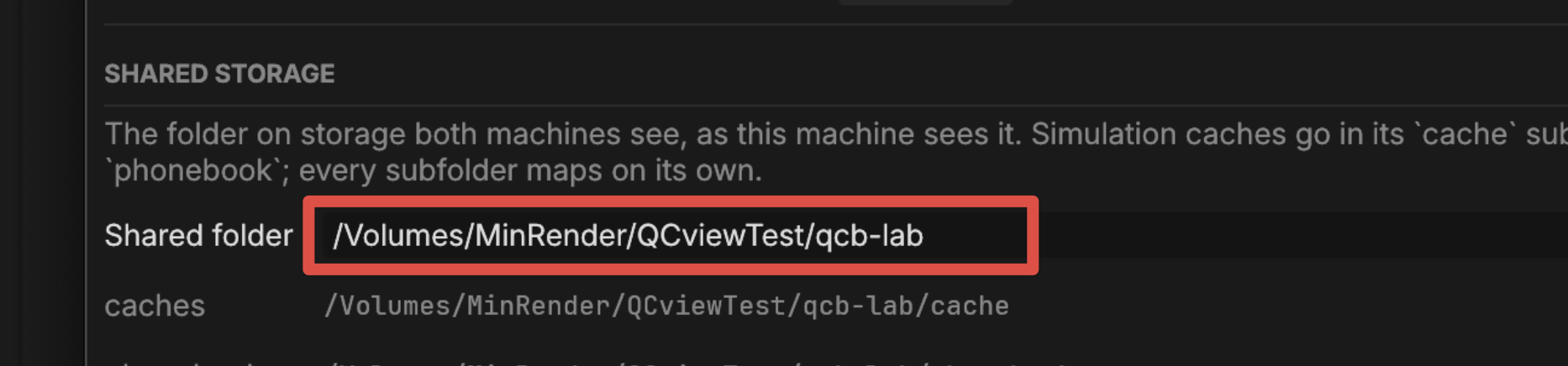
- Path mapping — one row per storage root the two machines share, in both spellings, so file paths translate between platforms. Use this for any shared storage (Network volumes, LucidLink paths, etc.) so a receiver on another platform can load the same project.
Windows note: the stream arrives over UDP. If QCView can’t connect to the replica, allow the stream port through the replica’s firewall (default 9998):
netsh advfirewall firewall add rule name="QCBridge SRT" dir=in action=allow protocol=UDP localport=9998
Using it
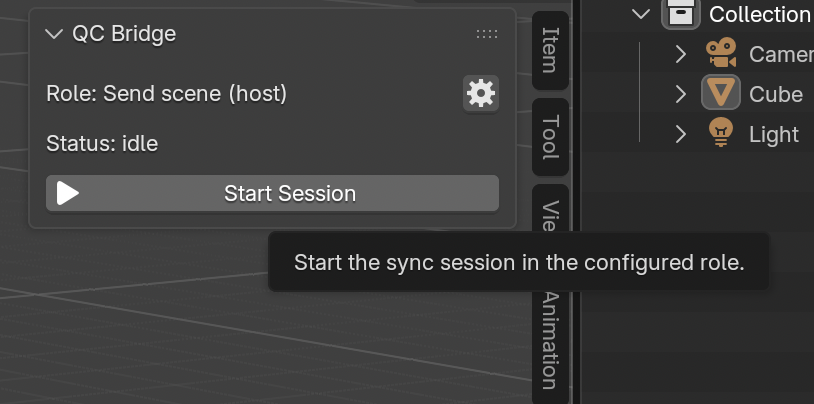
Start Blender on both machines and press Start Session in the QC Bridge panel (sidebar of the 3D viewport, N key). If the tray apps are connected this will launch a new blender instance, load the project remotely and start rendering it live. (Depending on the project size and computer speed, this will take a moment or two.)
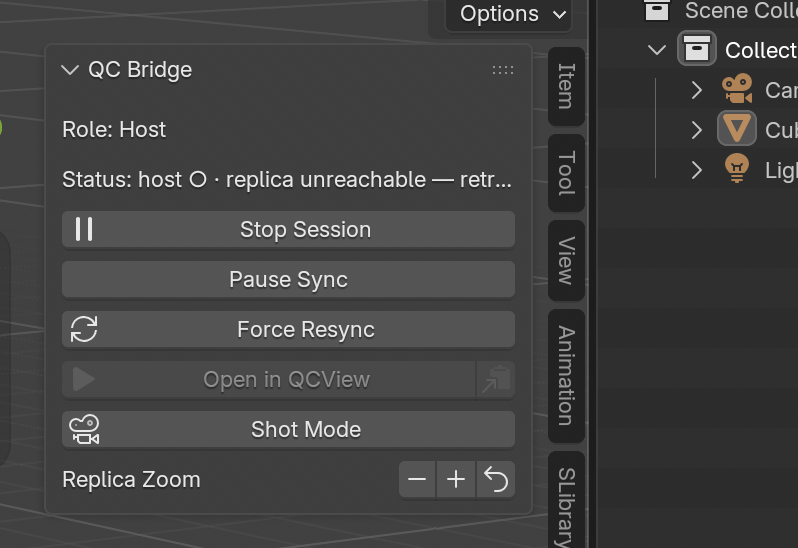
From the host panel:
- Open in QCView — launches QCView on the live stream.
- Shot Mode — locks the replica to the camera frame: fitted to the stream, matted in black, holding steady while you orbit your scene freely. The timeline still follows. This framing matches your render output.
- Replica Zoom −/+/reset — punches the replica’s camera view in or out without changing your own viewport.
- Pause Sync — holds your edits back (queued, not lost) while you try something messy; resume flushes them.
- Force Resync — resyncs the whole file if something is not updating naturally.
In QCView the stream is a live media item: load it on one side of a Dual View against an approved render, and set the OCIO input to your Blender scene’s working space.
The stream’s colour tags, when the encoder writes them, reach the scopes with the session, so a PQ stream measures in nits without further setup. If the encoder leaves them out, the Transfer chip on the live strip names the encoding; see HDR sources without tags.