QCBridgeAE for After Effects and Premiere Pro
QCBridgeAE is a Mercury Transmit plugin that streams live viewport output from the the AE or Premiere to QCView. The output is unaltered and full float, converted to 1/2 float in QCView so the image quality is preserved under all circumstances, including HDR scenarios.
Requirements
- QCView 2.4.0 or newer on the same machine. Audio from Premiere Pro needs QCView 2.5.4 and QCBridgeAE 0.3.1; notes on the feed and the stream output need QCView 2.5.6.
- After Effects or Premiere Pro with Mercury Transmit (any current release).
- macOS on Apple Silicon, or Windows x64.
Installation
Quit After Effects and Premiere Pro first. Download the installer from the QCBridgeAE releases:
- macOS:
QCBridgeAE-<version>-arm64.pkg - Windows:
QCBridgeAE-<version>-Setup-x64.exe
Updating is the same step with a newer installer.
Setup
In After Effects: Settings → Video Preview
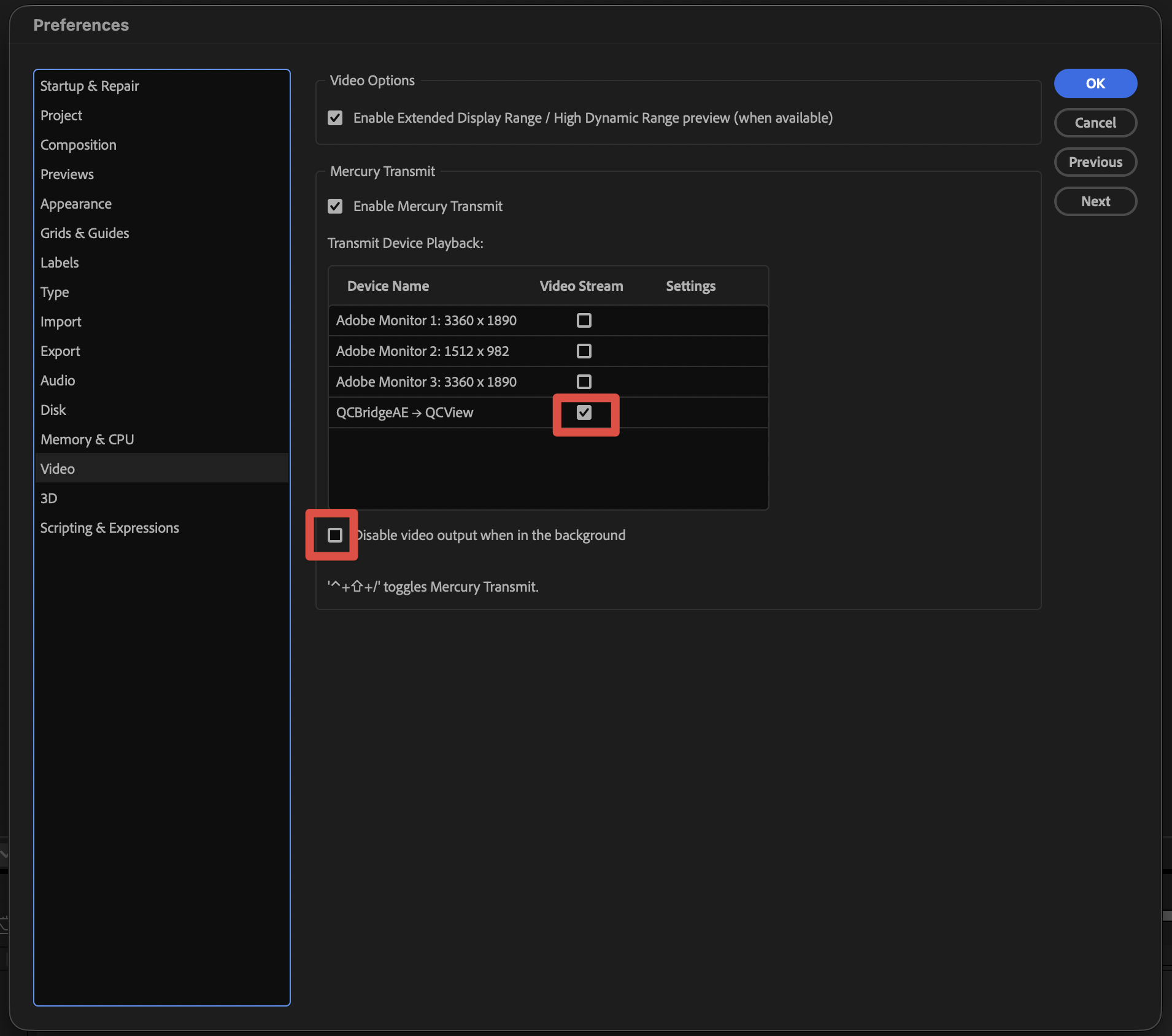
- Tick Enable Mercury Transmit, then tick QCBridgeAE to QCView.
- Untick “Disable video output when in the background”. With it ticked (the default), After Effects stops sending the moment you click into QCView — QCView shows PAUSED and names this setting.
In Premiere Pro: Settings → Playback — the same two ticks, and the same background setting to untick.
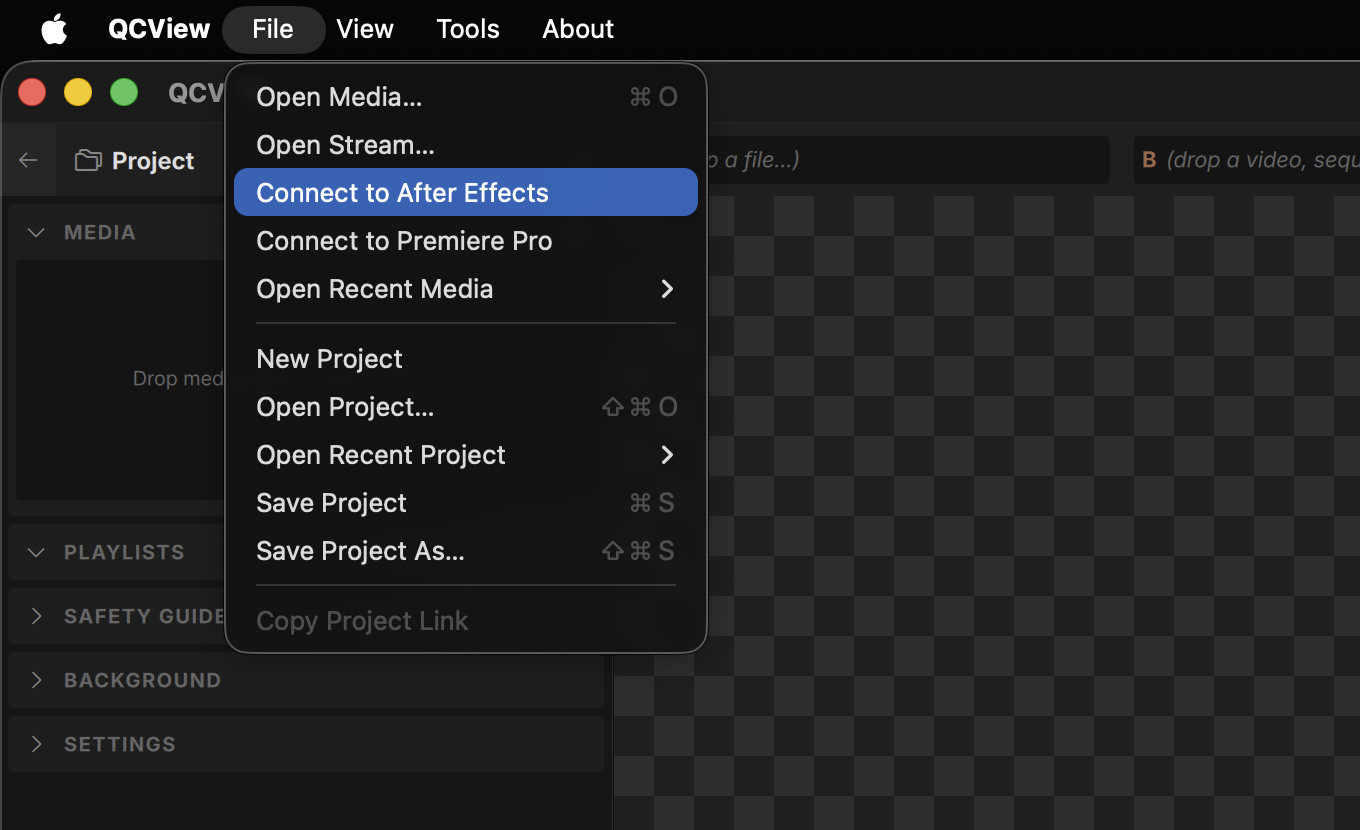
In QCView: File → Connect to After Effects (or Connect to Premiere Pro). The source appears in the Live bin as QCBridge After Effects / QCBridge Premiere Pro and waits until the host is sending.
Set QCView’s OCIO input to your project’s working space. The pixels arrive in the host’s working colour space, untransformed. With Adobe colour management that is the project’s working space; with OCIO colour management, the OCIO working space (for example ACEScg).
The feed carries no colour tag, so with OCIO off the scopes read it as SDR. The Transfer chip on the live strip tells them what it is: Linear for a linearised working space, SDR 709 for a display-referred one, PQ 2020 for an HDR project. See HDR sources without tags.
What to expect
- Frames are RGBA16F. The host sends 32-bit float; values above 1.0 and negatives are kept, and nothing is clamped.
- After Effects flattens transparency over the comp background colour, so its frames are opaque. Premiere Pro carries straight alpha.
- Mercury Transmit is always a few frames behind AE (Just how it works and shares the same issue with Blackmagic, Aja, or other plugins), but Premiere is fairly tightly synced — depending on system resources and timeline resolution.
- You can stream from AE and Premiere at the same time and between them, or use them in QCView Dual View review modes.
Audio from Premiere Pro
Premiere Pro can push the sequence’s audio alongside the picture. In Settings → Playback, tick Audio Stream for the QCBridgeAE device. The Inspector’s Audio card then shows the stream’s state, rate and channels with per-channel meters.
- Listen in QCView plays the feed’s audio through QCView. It is off by default — Premiere is already playing it — and useful when QCView is on another output or when the feed is sent on through the Output section, which carries the audio whether you listen or not.
- 5.1 and 7.1 sequences fold to stereo by the same routing rules as files; Mute scrub audio applies to the feed too.
- A/V sync (Live) in Settings delays the audio or holds the picture, per host application, to line the two up on your system.
- Live audio keeps a small jitter buffer that fills before it plays and refills after an underrun, so a busy Premiere does not chop the sound.
After Effects sends picture only.
Working with the feed in QCView
- The transport keys leave the feed alone. Play/pause, frame step, shuttle and seek have no meaning for a feed, so they are ignored;
Mmutes it. On a live item,Spacefreezes the feed for a note and brings it back — see Notes on live feeds. - Notes on a feed capture the frame you are looking at and live in the QCView project. For Premiere Pro each note records the sequence timecode it came from.
- Dual view takes a feed on either side. It keeps playing, with its audio in the mix, while the file side is paused, stepped or shuttled. See Dual View.
- Sending it on. The Output section publishes the viewport — the feed with QCView’s colour transform, guides and notes — as an NDI® source, out of an AJA device’s SDI and HDMI (a PQ or HLG feed passes straight through), or as an H.264 stream to a review service.