QCBridgeA for AJA SDI and HDMI
QCBridgeA sends what QCView shows and plays out of an AJA device’s SDI and HDMI outputs as a video signal: 10-bit RGB at 1080p, 720p or UHD, at the source’s frame rate, SDR, PQ or HLG, with the mixed audio embedded. It is the way to put QCView’s viewport on a reference monitor.
Like QCBridgeN it runs as its own small application beside QCView. QCView starts it when the output is switched on; it takes the device exclusively, the way AJA’s own applications do, and releases it when the output is switched off or QCView quits.
Requirements
- QCView 2.5.7 or newer on the same machine.
- An AJA device with playback and AJA’s own software installed for the driver (AJA Desktop Software 17.x). Tested on a T-TAP Pro. UHD needs a device with 12G routing: T-TAP Pro, Kona 5 and Corvid 44 with 12G firmware, Io 4K Plus.
- Windows 10 1809 or later, x64, or macOS 13 or later on Apple Silicon. Windows is where it has been proven; the macOS build is signed and notarized but has not yet run against a device.
Installation
Install AJA’s software for the device first. Then download the installer from the QCBridgeA releases:
- Windows:
QCBridgeA-<version>-Setup-x64.exe - macOS:
QCBridgeA-<version>-arm64.pkg
Each installs the application and registers it with QCView, which lists it in the Output section from the next launch. Updating is the same step with a newer installer. The Windows installer is not code-signed yet, so SmartScreen asks once.
Setup
- In QCView, open the Output section in the left rail. The AJA row shows the sink; open its chevron for the settings.
- Choose the transfer: SDR Rec.709, PQ Rec.2100 or HLG Rec.2100. For PQ, choose the mastering primaries (Rec.2020 or P3-D65) and the peak, MaxCLL and MaxFALL in nits the monitor should read.
- Choose the raster: Auto sends UHD for anything above 1080p and 1080p otherwise, switching when the source changes; 1080p and UHD fix it.
- Press Start. The row reads starting, then live, and its line names the device, the format and the connectors, for example “T-TAP Pro UHDp25 10-bit PQ 2020, SDI + HDMI RGB”.
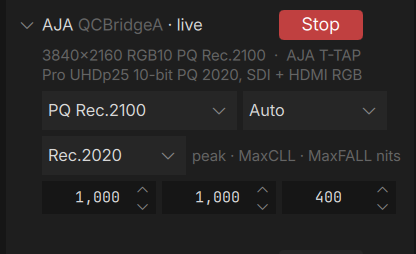
The transfer and the raster can be changed while it runs; the card reconfigures in place, a brief interruption and no stop and start. If another application holds the device, the row says which one.
Picture and colour
The transfer is what the wire is told and signals — the SDI VPID and the HDMI InfoFrame, with the mastering metadata for PQ. The picture itself goes out as the viewport shows it. So the display is chosen once, in the colour panel: for an HDR monitor on the card, pick the matching Rec.2100 PQ or HLG display in OCIO or minColor and set the output’s transfer to the same thing. A Premiere Pro or After Effects feed that is already PQ or HLG passes straight through with the viewport on a PQ display. See HDR for the colour side.
Other things to know:
- The frame rate follows the source: 23.976, 24, 25, 29.97, 30, 50, 59.94 and 60 progressive. A rate change mid-session reconfigures the card.
- SDI carries YCbCr 4:2:2 from the card’s colour-space converter (Rec.709 for SDR, Rec.2020 for PQ and HLG). HDMI carries RGB 4:4:4 full range, except UHD above 30p, where HDMI 2.0 has no room for 10-bit RGB and the HDMI side carries YCbCr; the row says so.
- The audio is the mixed audio QCView plays, embedded as 48 kHz PCM, stereo in channels 1 and 2. Mute feed silences it.
- Guides and notes go out as layers when their chips are on; a note’s frozen frame in Review goes out as the viewport shows it.
Why a separate application
The sink talks to the AJA driver through AJA’s NTV2 SDK and holds the device for the session; keeping that in its own process keeps QCView’s own renderer and its licence simple, and a sink that fails leaves QCView running. QCView hands it frames through shared memory, the same bus QCBridgeN uses. The design and the measurements are in the project’s PLAN.md and lab/.
AJA, KONA, Io and T-TAP are trademarks of AJA Video Systems, Inc.; QCBridgeA is not an AJA product. The AJA device driver is not part of QCBridgeA; install it from aja.com.